
How to Create a Contact Form for Your Website

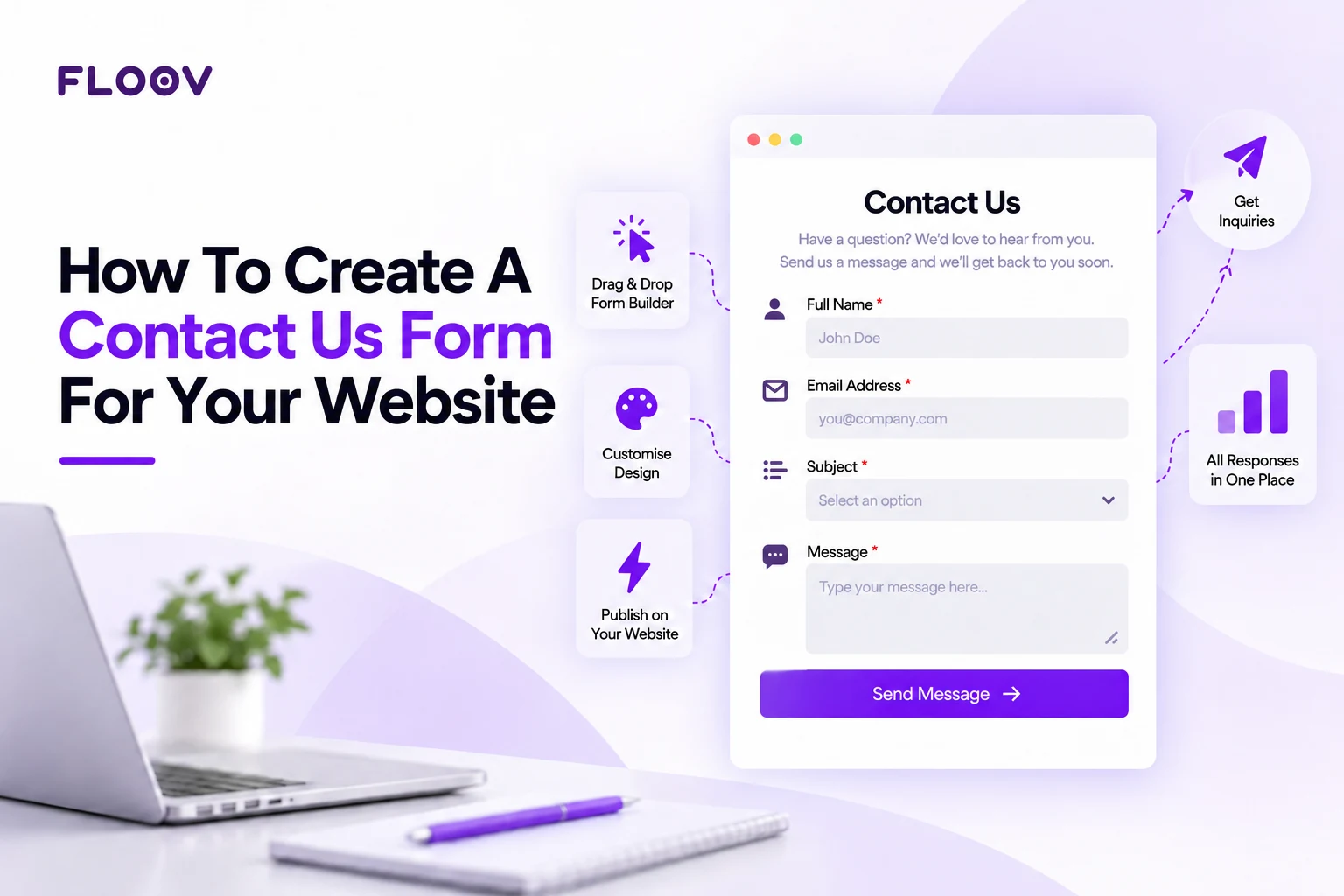
A contact form on your website gives visitors a simple way to ask a question or request a quote. This guide shows you how to build one in Floov, add it to your website, and test it before sharing the page.
Think of your website as a small shop. A visitor walks in, looks around, and a question pops into their head. Does this cost extra? Can you do it by Friday? If nobody is at the counter, they won’t wait around. A contact form is the person at the counter.
Why Your Website Needs a Contact Form
An email address gives visitors a way to reach you, but it depends on their email setup. A contact form lets them send a message directly from your website.
A contact form also helps you collect and manage inquiries:
- Less junk in your inbox. Bots crawl the web for email addresses sitting in plain text. A form lets visitors message you without displaying your address publicly, and you can enable CAPTCHA to help reduce bot submissions.
- Answers you can use. You choose the questions: phone number, budget, best time to call, or whatever helps you reply properly. If you run a design or marketing business, a website design questionnaire form can collect project details before your first call.
- Inquiries in one place. Keep them together in your form’s Responses dashboard instead of scattered across your inbox.
How to Create a Contact Form in 7 Steps
You don’t need a developer. Here is the whole process in Floov.
Step 1: Decide What to Ask
Ask only for information you need to respond. For most websites, four fields are enough:
- Full name
- Email address
- Subject or type of inquiry
- Message
If you need more detail later, such as a long onboarding questionnaire, create a separate form for it and keep your contact page short.
Step 2: Start With the Contact Form Template
Open Floov’s contact form template and add it to your account. It already includes the common fields, so you’re editing rather than starting from a blank page.
Prefer to start from a prompt? The AI Form Builder can draft the fields and layout for you. It uses credits, and the Free plan includes 20 lifetime credits.
Step 3: Edit the Fields
Rename labels, reorder fields, delete what you don’t need, and mark the essentials (usually name, email, and message) as required. Adjust colors to match your brand. Customize the thank-you message and include a response time your team can meet.
Conditional logic, which shows or hides fields based on earlier answers, is available on the Pro plan. You won’t need it for a basic contact form.
Step 4: Set Up Notifications and Spam Protection
Open Settings > Email Notifications, turn on Send notification email, and enter the address you choose, such as a shared team inbox. To include the submitted answers, type @ in the message and choose All answers. Then open Settings > Access and turn on Require CAPTCHA to help reduce bot submissions.
Step 5: Publish and Copy the Embed Code
Publish the form, then open Share > Embed. Choose Inline to place it on the page or Modal for a popup, and copy the generated code.
Step 6: Add the Form to Your Website
Paste the embed code into your site. You can place it in two ways:
- On the page itself. The form sits inside your “Contact Us” page.
- As a popup. It opens when someone clicks “Contact Us” or “Get a Quote” from any page.
Embedding works on websites that accept custom HTML. If you’d rather use your website builder’s own form block, capabilities for styling and notifications vary by platform, so check what yours offers before choosing.
Step 7: Test the Live Form
Open the page where the form is embedded, on both desktop and your phone. A big share of visitors will find you on mobile, so check that:
- Fields are big enough to tap without zooming
- If you add a phone field, check that tapping it opens a number keypad
- The submit button is visible without scrolling sideways
- A thank-you message appears after sending and says when they’ll hear back
Then submit a real test entry through the live embedded form. Confirm that the response appears in your Responses dashboard and that the notification email arrives. Try submitting with a required field empty, then complete the form using only the keyboard.
Contact Form Design Tips
Sometimes a form works fine and still gets ignored, simply because it feels like paperwork. A few easy changes help:
- Make it easy to find. Keep the form near the top of the page, or add a clear “Contact” link to your menu.
- Use one column. Fields side by side make people’s eyes bounce around. A single column reads faster.
- Rename the button. “Submit” feels cold. “Send Message” or “Get in Touch” feels like a person is on the other end.
- Say what happens next. A short line like “We reply within 24 hours” removes the worry about sending a message into the void.
Final Thoughts
A contact form is small, but it often decides whether a curious visitor becomes a customer. Keep it short, test it on mobile, and tell people what comes next.
Start with Floov’s contact form template and customize it for your website.
Frequently Asked Questions
Common questions about the topics covered in this article.
A name, an email address, a subject, and a message box. You can add a phone number or a dropdown for the type of inquiry, but keep the form short. Ask only for what you need to reply.
Use a visual builder such as Floov. Start from the contact form template, customize it in the drag-and-drop editor, copy the embed code, and paste it into your website. Embedding works on websites that accept custom HTML.
A contact form is the section where visitors enter and send a message. A contact us page is the full page around it, and it can also include business hours, an address, a phone number, a map, and social links.
Floov offers mobile-friendly contact forms, AI-powered form generation (which uses credits), an optional CAPTCHA to help reduce bot submissions, and no per-response fees. You can receive email notifications at the address you choose and keep all submissions in your Responses dashboard.