
Getting Started with Floov
Welcome to the Floov Help Center. Start here for a short tour of the product, then choose the guide that matches what you want to do.
What Floov does
Floov is a visual form builder. Add fields to a canvas, publish the form to a public URL, and review responses in your dashboard. Forms can have multiple pages, themes, conditional routes, integrations, and workspace collaborators. You do not need to write code to build or share one.
Choose your starting point
- Set up your account if you need help with signup, email verification, and your first workspace.
- Build and publish a form for a short checklist from opening the editor through checking responses.
- Build a contact form for a worked example with specific fields and email notifications.
- Create a form with AI if you want to start from a written brief and review a generated preview.
Find your way around
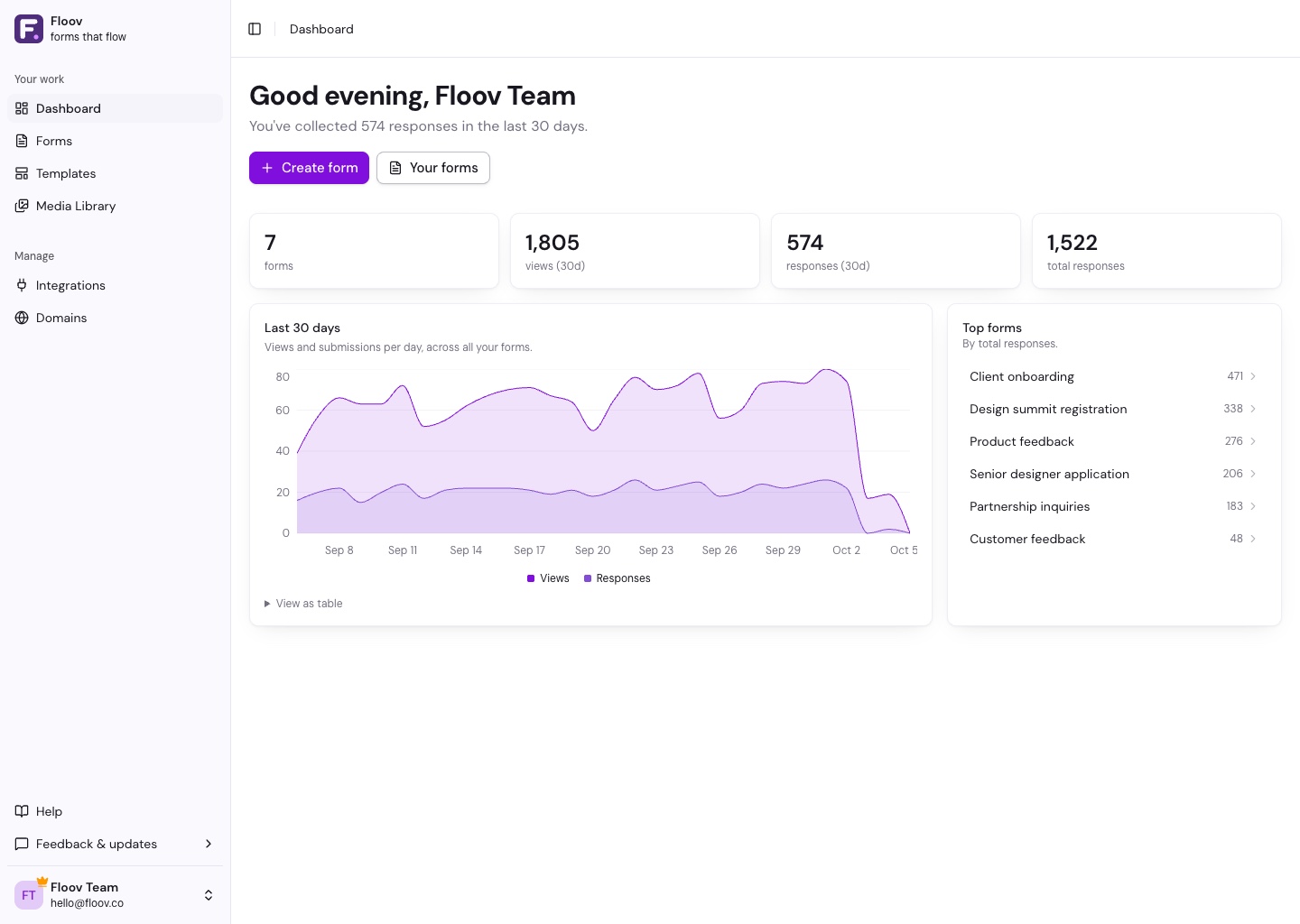
The dashboard shows your form and response totals, recent activity, and a Create form action. Open Forms to find and manage drafts and published forms, Templates to choose a starting design, or Media Library to manage reusable images. Open a form to edit its pages, fields, appearance, settings, and publishing options.
On desktop, the sidebar toggle switches between the full menu and a compact menu of navigation icons. Hover over an icon to see its label, or use the toggle again to expand the sidebar. On mobile, the toggle opens or closes the sidebar. The form editor starts with the compact sidebar on desktop and restores your previous sidebar setting when you leave.
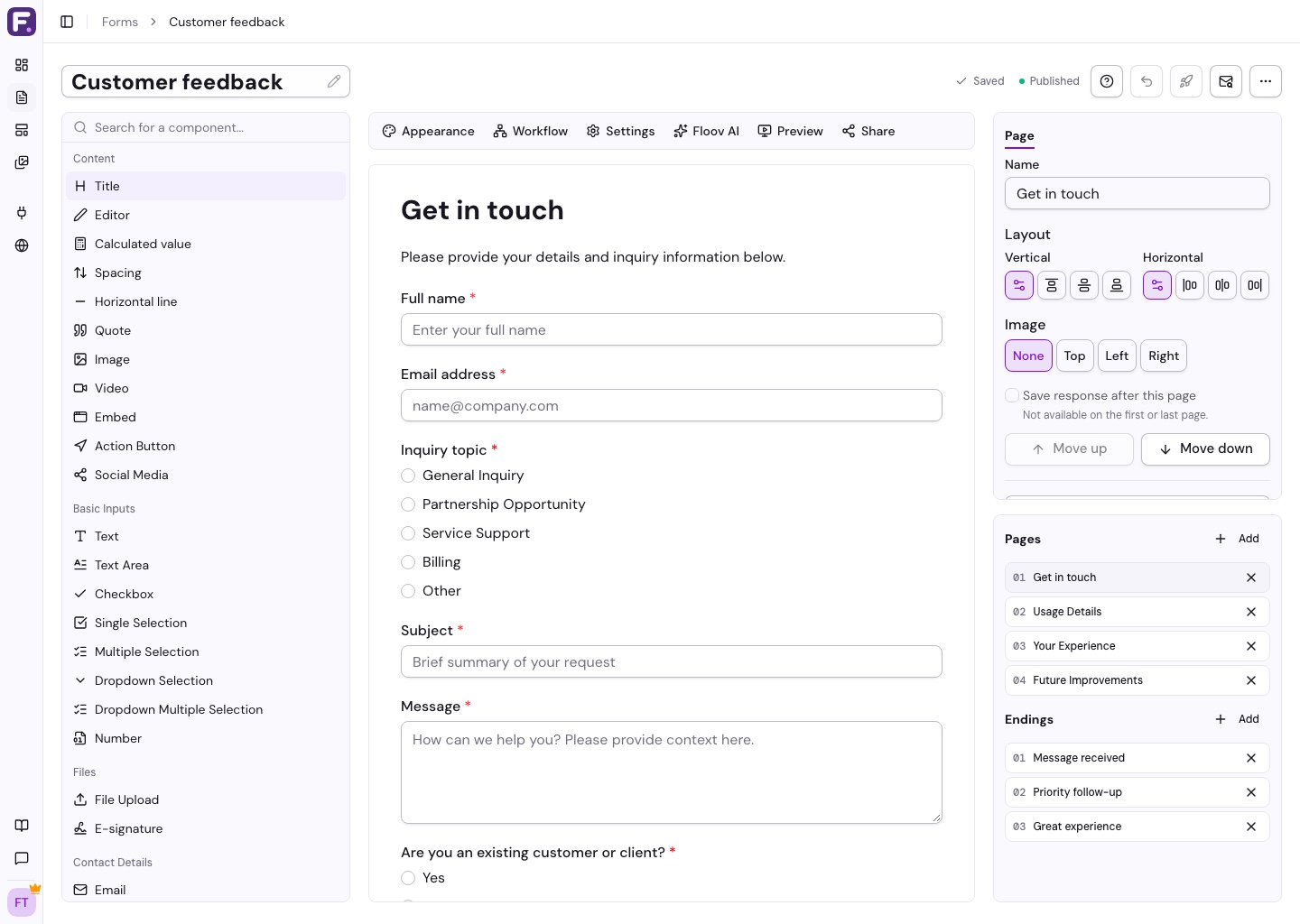
Workspaces hold forms and determine who can work on them. A published form is a snapshot: you can keep editing its draft without changing the live version, then publish again when the updates are ready. Responses, exports, and insights are available from the form list after submissions arrive.
Open Integrations or Domains under Manage in the sidebar. Your account menu at the bottom of the sidebar contains Profile, Billing, Invoices, and Log out.
If your account does not have Pro access, Upgrade to Pro above Help opens Billing.
Help opens this Help Center. The Feedback & updates menu contains Changelog, Roadmap, and Request a Feature.
Explore next
Use the editor overview to learn the builder, browse the template gallery for a starting design, or read Publishing Forms before sharing your link.