
Ending Pages
Ending pages appear after a response is submitted. Use them to say thanks, explain next steps, or link to your website.
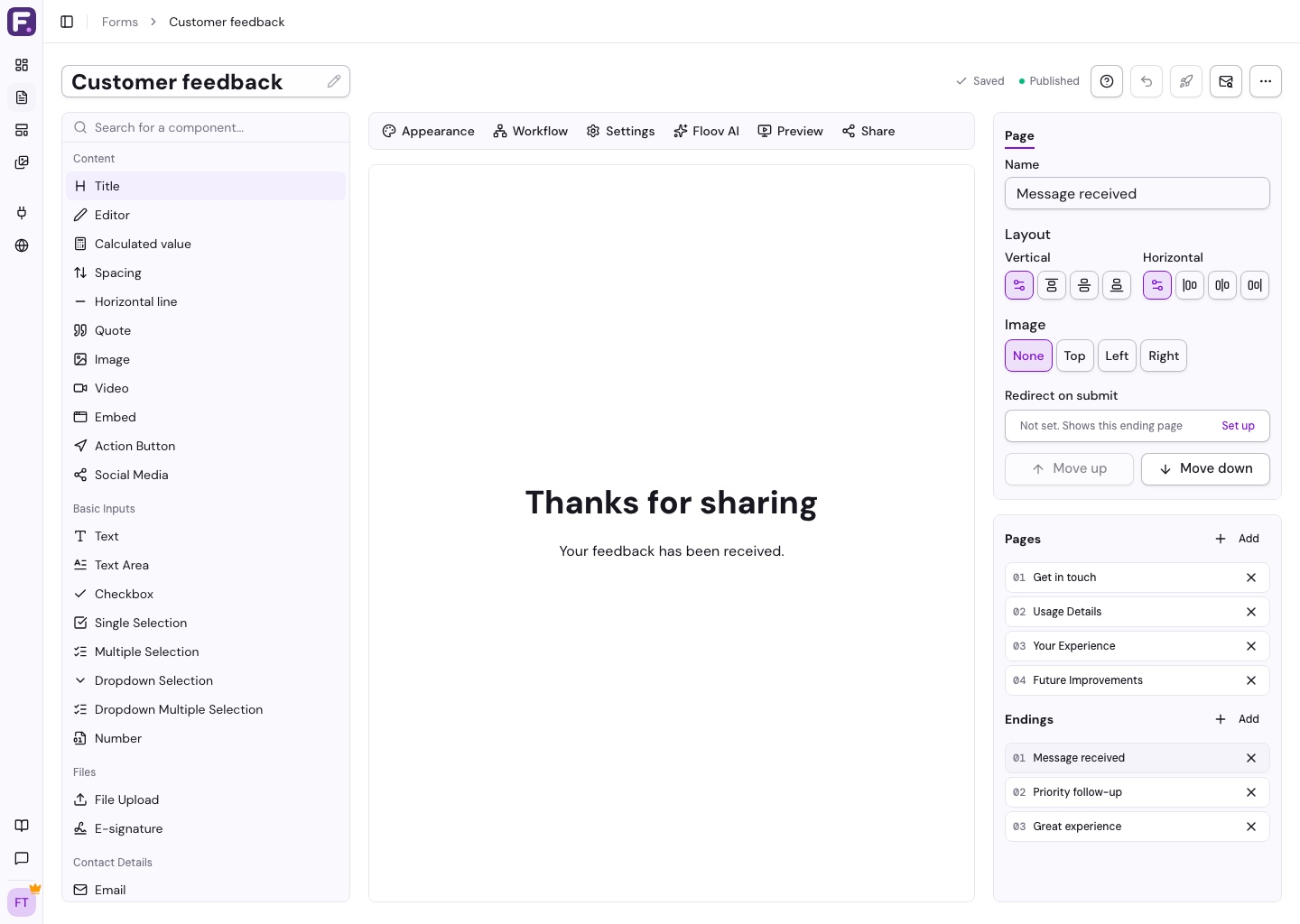
Edit Your Thank-You Page
- Select an ending in the pages panel.
- Edit its text or add content such as an image, video, or button.
- Use Page > Layout to adjust alignment.
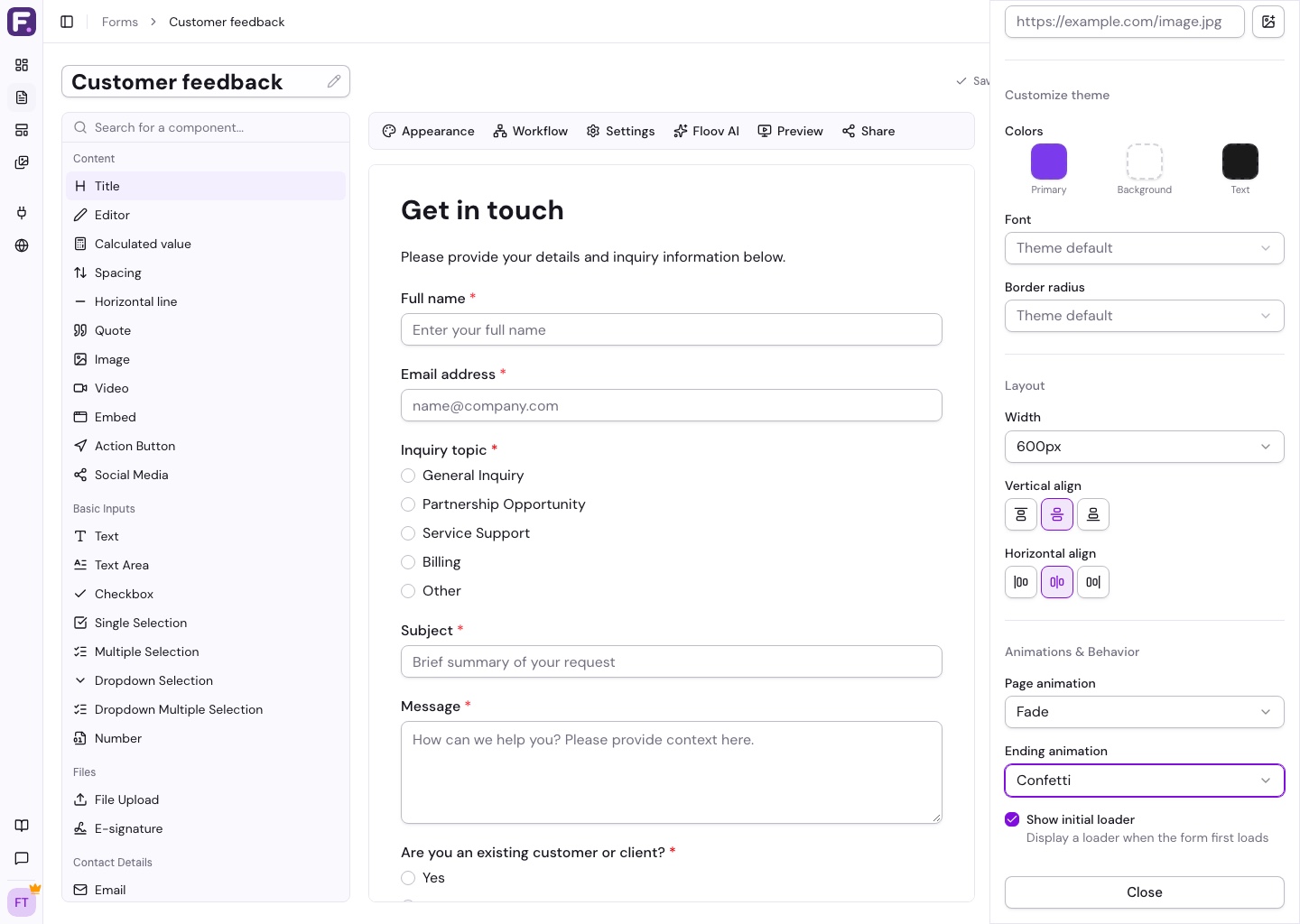
For a celebration after submission, choose Confetti or Fireworks under Appearance > Ending animation.
To personalize a thank-you message, type @ inside a Title or Editor block and select a question. See Insert Answers into Text.
Use Different Endings
Choose Add page and the ending type to create another ending. With Pro conditional logic, route respondents to different endings based on their answers.
Redirect to a Website
On Pro, select an ending and choose Set up under Redirect on submit. Enter the destination URL. The response is saved before the respondent is sent there.
You can optionally use Pass answers as URL parameters to send selected answers to the destination. Add a parameter name and choose its field.
A redirect replaces that ending's content and animation. Remove the redirect to show the ending again. Publish changes to make them live.
See Multi-Page Forms or create an ending with AI.
Show a quote or score with a Calculated value block or insert a result with @ in a Title or Editor. See Calculations and Answer Scoring. Pro redirect parameters can also pass calculated results to the destination URL; empty results are omitted.