
Quick Start
Create a form, try it, and share it in a few steps.
Build and Publish
- On your dashboard, choose Create form. Select Blank form, choose a workspace, and create it.
- Add the questions you need. Drag fields from the toolbox, or use Add fields on a smaller screen. Select a question to change its wording or make it required.
- Choose a theme in Appearance. To receive submissions by email, open Settings > Email Notifications.
- Choose Preview to try the questions and page flow on desktop and mobile.
- Choose Publish, open Share, and copy your public link.
- Send a test response through the public link, then open Responses to see it.
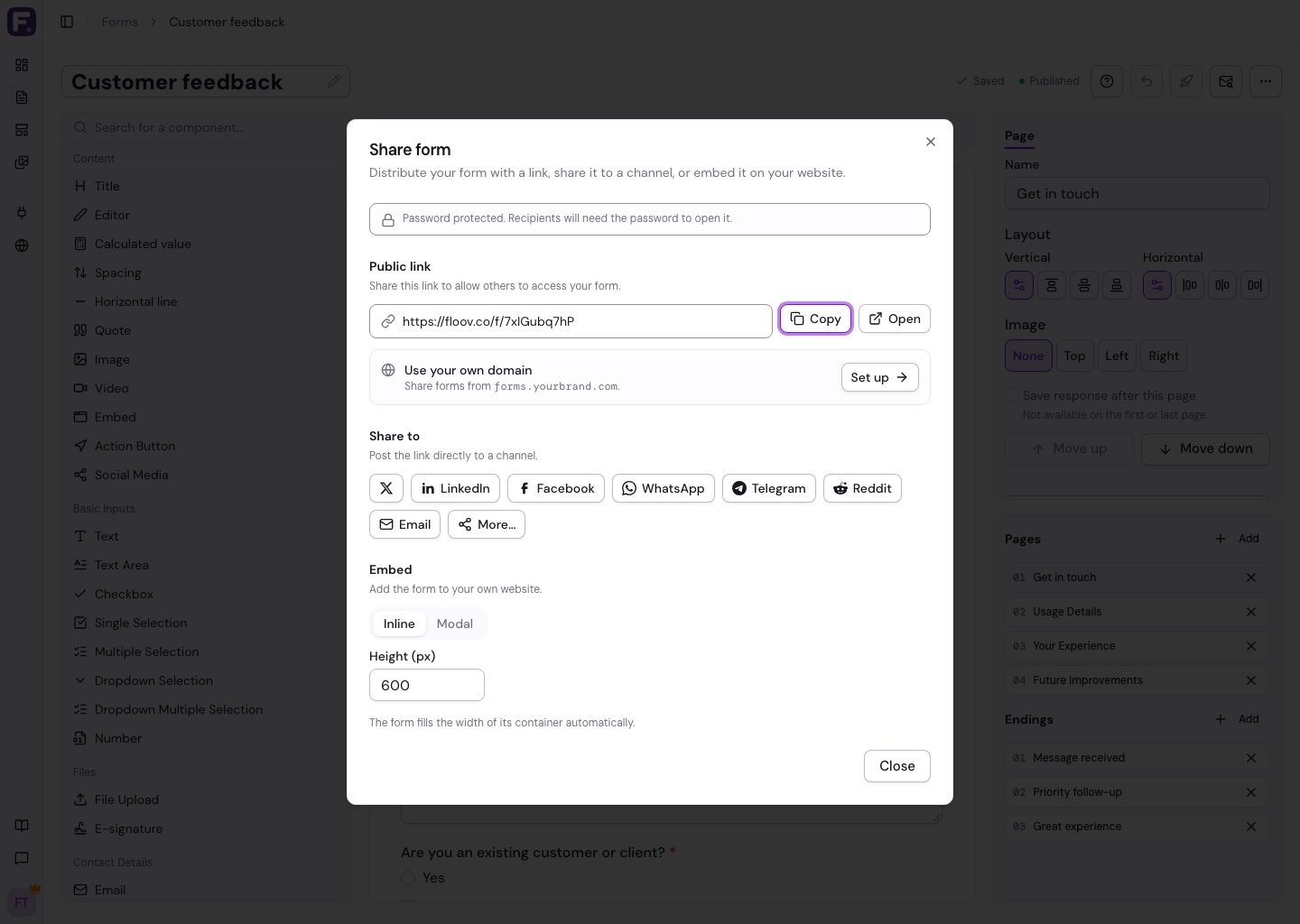
You can keep editing after publishing. Your live form changes only when you publish again.
Other Ways to Start
Use a template for a ready-made starting point, or describe your form to AI.
For a worked example, follow Build a Contact Form. The Editor Overview explains the main controls.