
Themes & Appearance
Use Appearance in the form editor to change your form's theme, layout, background, and animations.
Choose a Style
- Open Appearance and choose a theme.
- Turn on Dark mode if you want a dark form.
- Adjust the width and alignment to suit your questions.
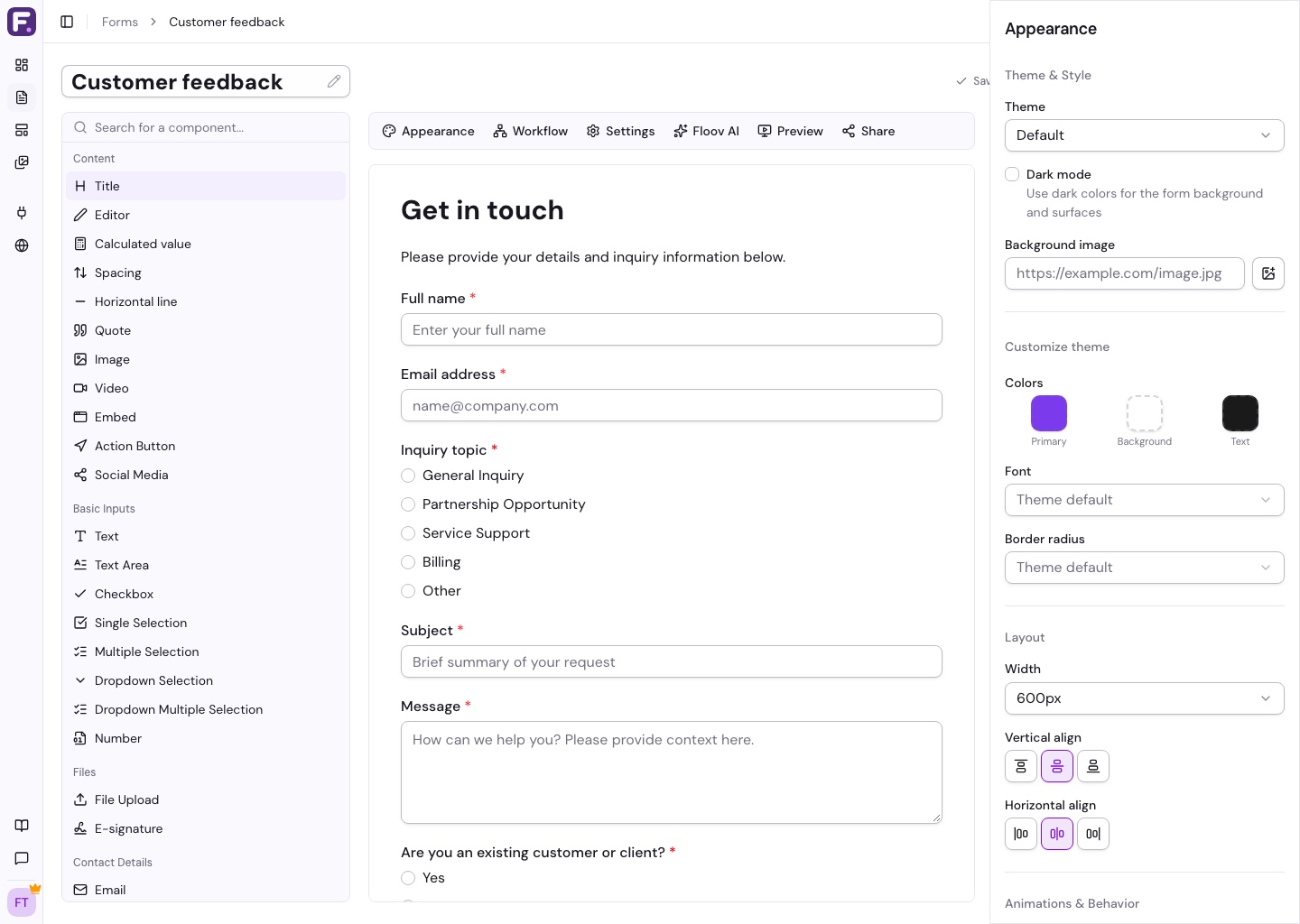
Every plan includes custom colors, fonts, and corner roundness. See Theme Customization & Branding for these controls and branding removal.
Add Images
A background image fills the page behind your form. A page image sits above or beside its questions.
To add a page image, select the page and open Page > Image. Choose Top, Left, or Right, then paste an image URL. Choosing an uploaded image from the Media Library requires Pro.
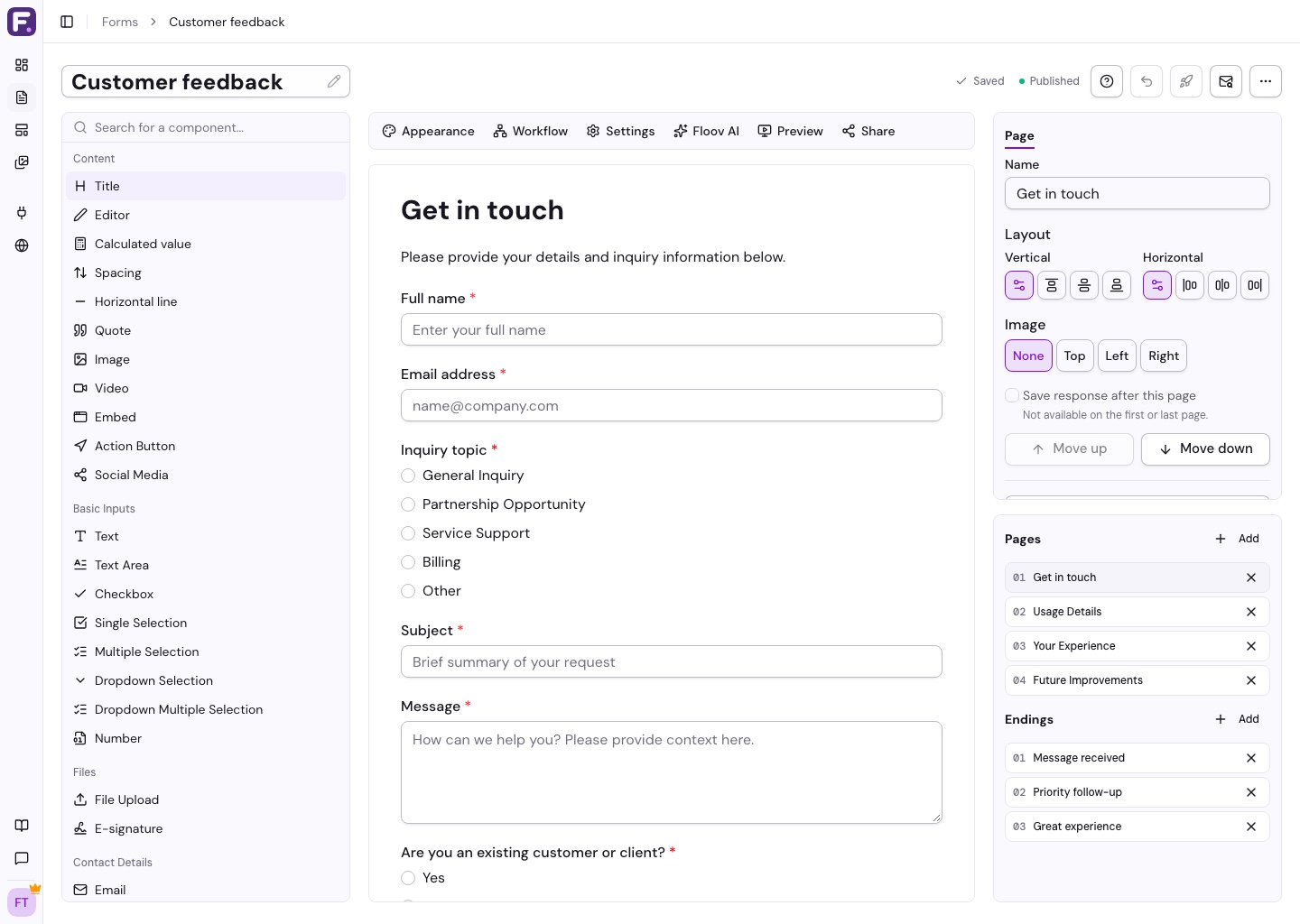
Side images stack above the questions on smaller screens. Preview both desktop and mobile to check the crop. Apply to all content pages copies the image and placement to those pages; endings stay separate.
Page Layout and Animations
Use Page > Layout to override alignment for one page, or choose Use form default. A Top image keeps that page top-aligned.
In Appearance, choose a page transition, add confetti or fireworks to endings, or enable an initial loader. Publish when you are happy with the result.