
Password Protection
Pro. Password protection puts a prompt before your published form. Visitors receive form content only after entering the correct password while the form is active.
Set a form password
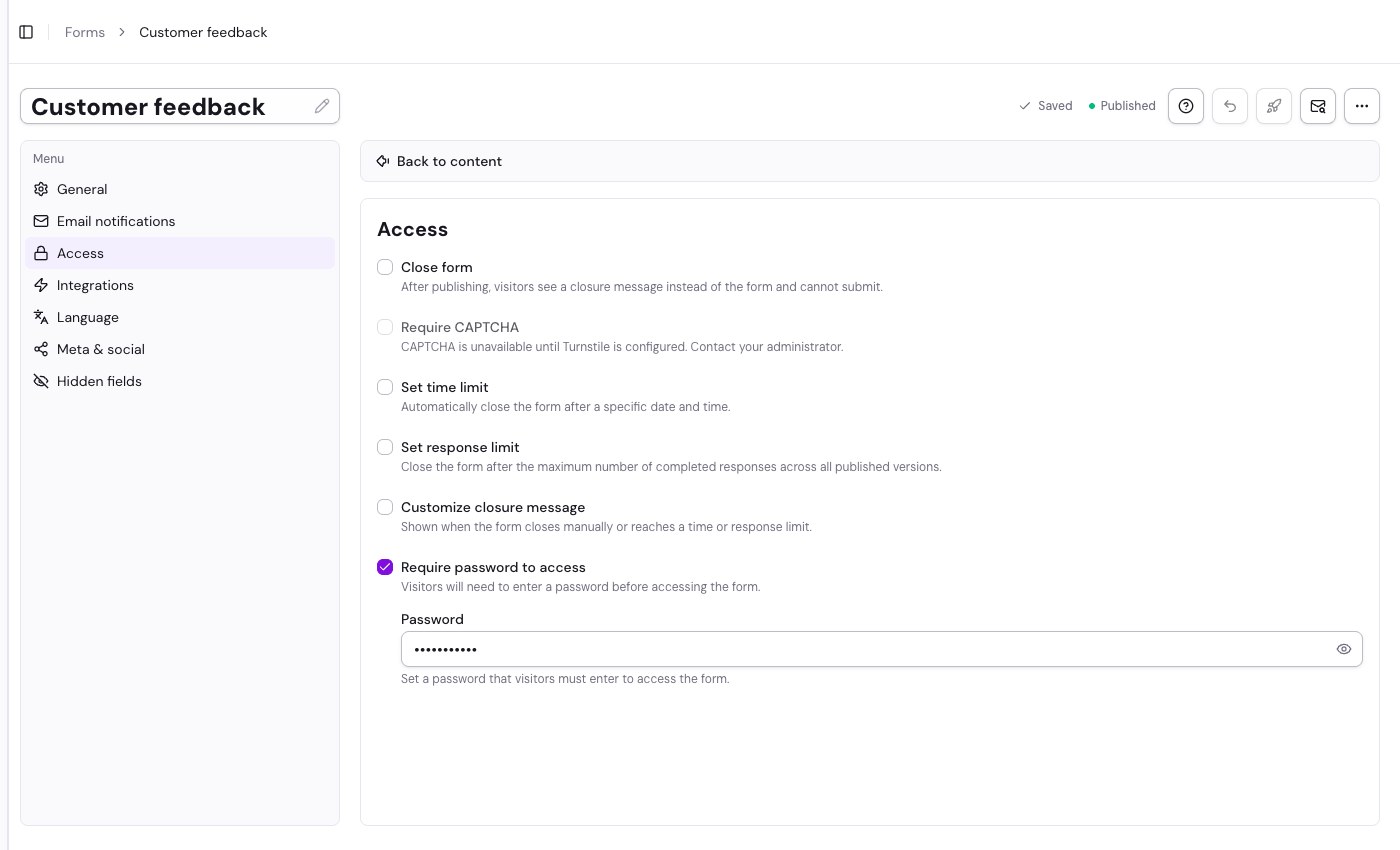
- Open the form editor, choose Settings, and open Access.
- Turn on Require password to access and enter a password. The field is masked by default; use the eye button to reveal or hide it while editing.
- Publish the form. A protected form cannot be published with an empty password.
- Share the form link and password separately with the intended respondents.
What visitors see
Visitors to an active protected form see a password prompt before its questions or other form content. They can open the form after entering the correct value. If the form has been closed manually or by a time or response limit, the closure state appears before the password prompt. Other unavailable states show Form unavailable.
Change or remove the password
Change the password in Access settings and publish. People who previously unlocked the form must use the new password on their next reload or visit. To remove the prompt, turn off password protection and publish. Review the public link after changing access settings.
Related
See Access & Protection for all access controls, Close a Form & Set Limits for closure behavior, and Publishing Forms for draft and live changes.