Custom Domains

Custom domains let you serve your published forms from your own domain, such as forms.yourcompany.com/contact, instead of the default floov.co link. Your links, social shares, and both inline and modal embeds use the branded domain you select.

Custom domains are a Pro feature, and only a workspace owner can connect them.

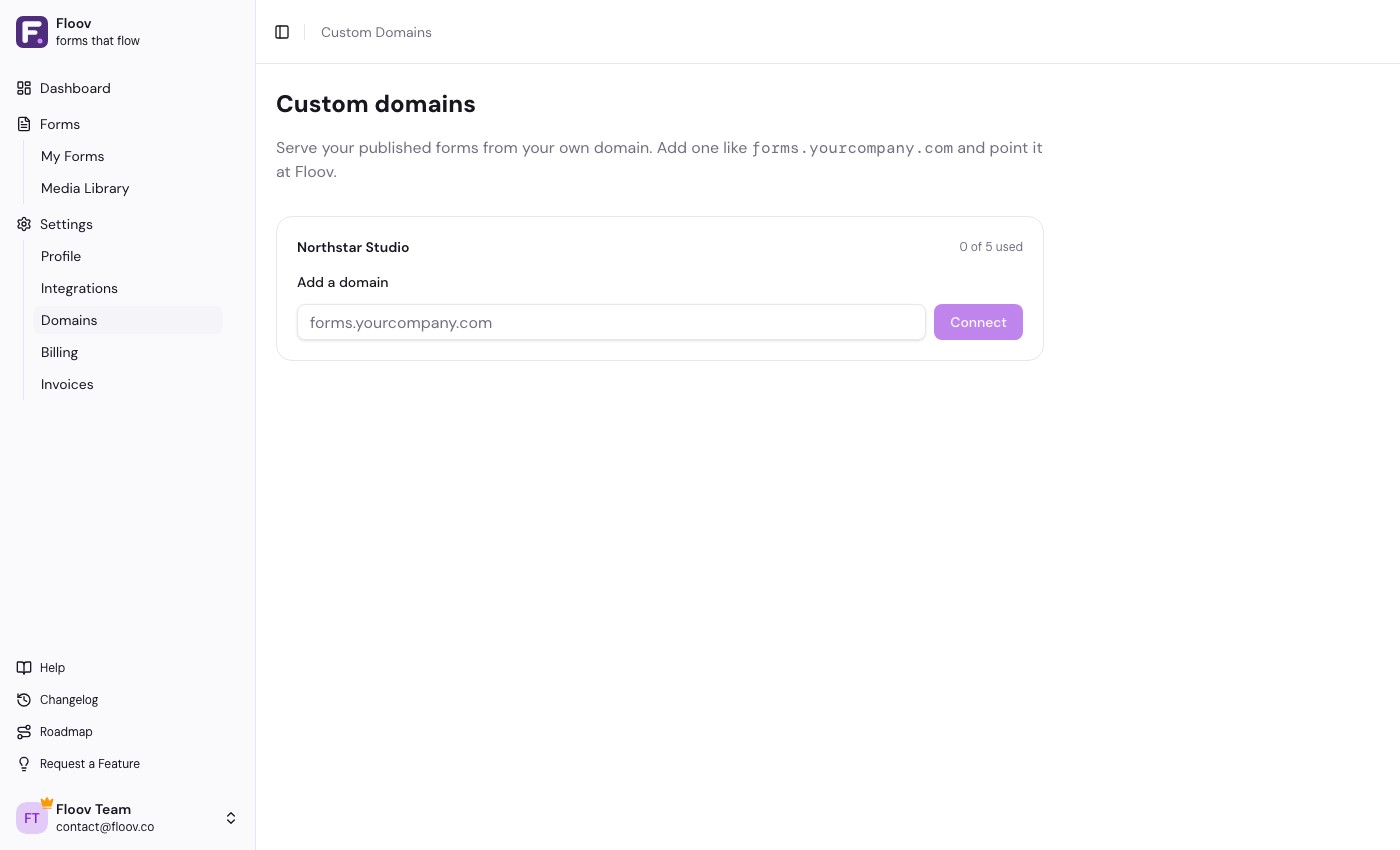
Custom domains settings grouped by workspace with a Connect domain action

Connecting a domain

  1. Go to Settings → Domains.
  2. Under the workspace you want, enter the domain (for example forms.yourcompany.com) and click Connect.
  3. The domain appears with a Pending status and the DNS record you need to add.

Pointing your DNS

At your domain provider (Cloudflare, GoDaddy, Namecheap, Route 53, etc.), add a record pointing your domain at the target shown in Floov: custom.floov.co:

  • Subdomain (like forms.yourcompany.com): add a CNAME record → custom.floov.co
  • Root domain (like yourcompany.com): a plain CNAME isn't allowed at the root, so add an ALIAS or ANAME record → custom.floov.co. Your DNS provider must support it (Cloudflare, Route 53, DNSimple and others do). If it doesn't, use a subdomain instead.

If your domain already has a record on that hostname, replace it rather than adding a second one.

Activation

After you add the DNS record, click Refresh (or just wait a couple of minutes). Refresh restarts certificate validation and checks the latest status. Floov also checks automatically and issues an SSL certificate. When everything is ready the status turns Active and the domain starts serving your forms over HTTPS.

DNS changes can take from a few seconds to a few hours to propagate. If the status stays pending, double-check the record at your provider and refresh again. A domain that is still pending or failed after 24 hours is disconnected automatically, releasing the name so you can correct DNS and connect it again.

Using your domain

Once a domain is active, your forms are reachable at your-domain/your-form-slug. In the form editor's Share dialog, the public link, social shares, and both embed snippets use the selected custom domain. If a workspace has more than one connected domain, you can pick which one to share from, including the default floov.co link.

Multiple domains

You can connect several domains to a workspace (handy if you run more than one brand). Every active domain serves the workspace's forms, so the same form is reachable on each of them.

Removing a domain

Click the trash icon next to a domain in Settings → Domains to disconnect it. The form stays available on the default floov.co link and any other connected domains. Floov retries the provider cleanup automatically if the provider is temporarily unavailable; reconnect after the previous disconnect has finished.

Things to know

  • A domain only serves forms while the workspace owner's subscription is active.
  • A given domain can be connected to one workspace at a time.
  • CAPTCHA protection currently applies to the Floov-hosted form URL; it is disabled on connected custom domains.
  • Visiting a custom domain at a path that isn't a published form shows a simple "form not available" page.

Related