
Viewing Responses
Open your form's Responses page to read, find, and manage submissions. Each row is a response; its status shows whether it is completed or partial.
Column headings use the latest published label for each question. Publish label changes, then refresh Responses to see them. Renaming a question keeps its existing answers in the same column; deleted questions remain available for older responses.
Find a Response
Search answers or a response Reference, then press Enter or Search. Use column filters to narrow by status, date, or an answer. Filters apply across all results and carry through to exports.
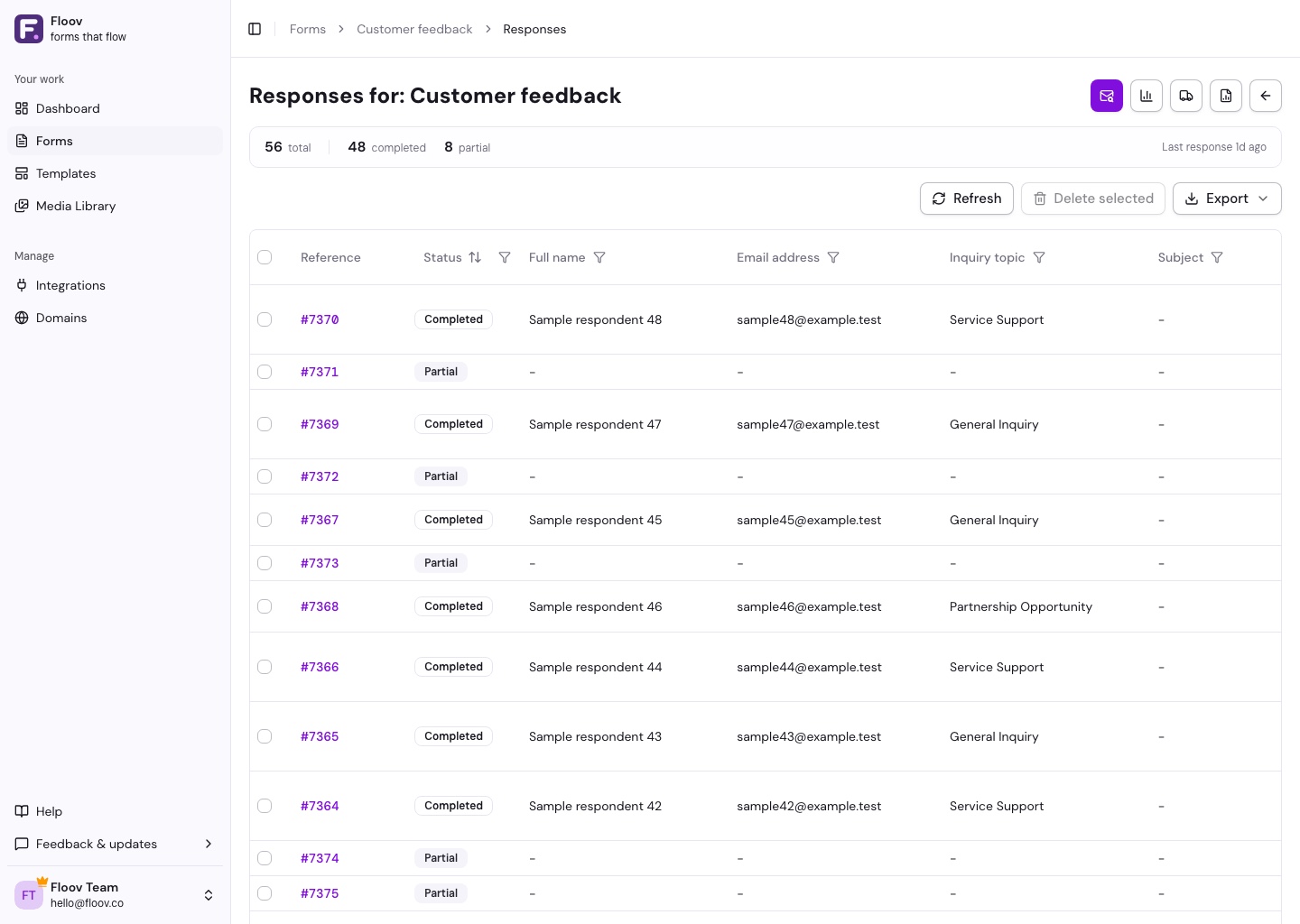
Choose Clear filters to start over, or Refresh to load new responses. On smaller screens, scroll the table sideways to see more columns.
Read or Edit
Select a response's Reference to open its details. You can copy its link or download attachments from there. Details use the labels and question settings from that response’s published form version, so an older response may show an earlier label.
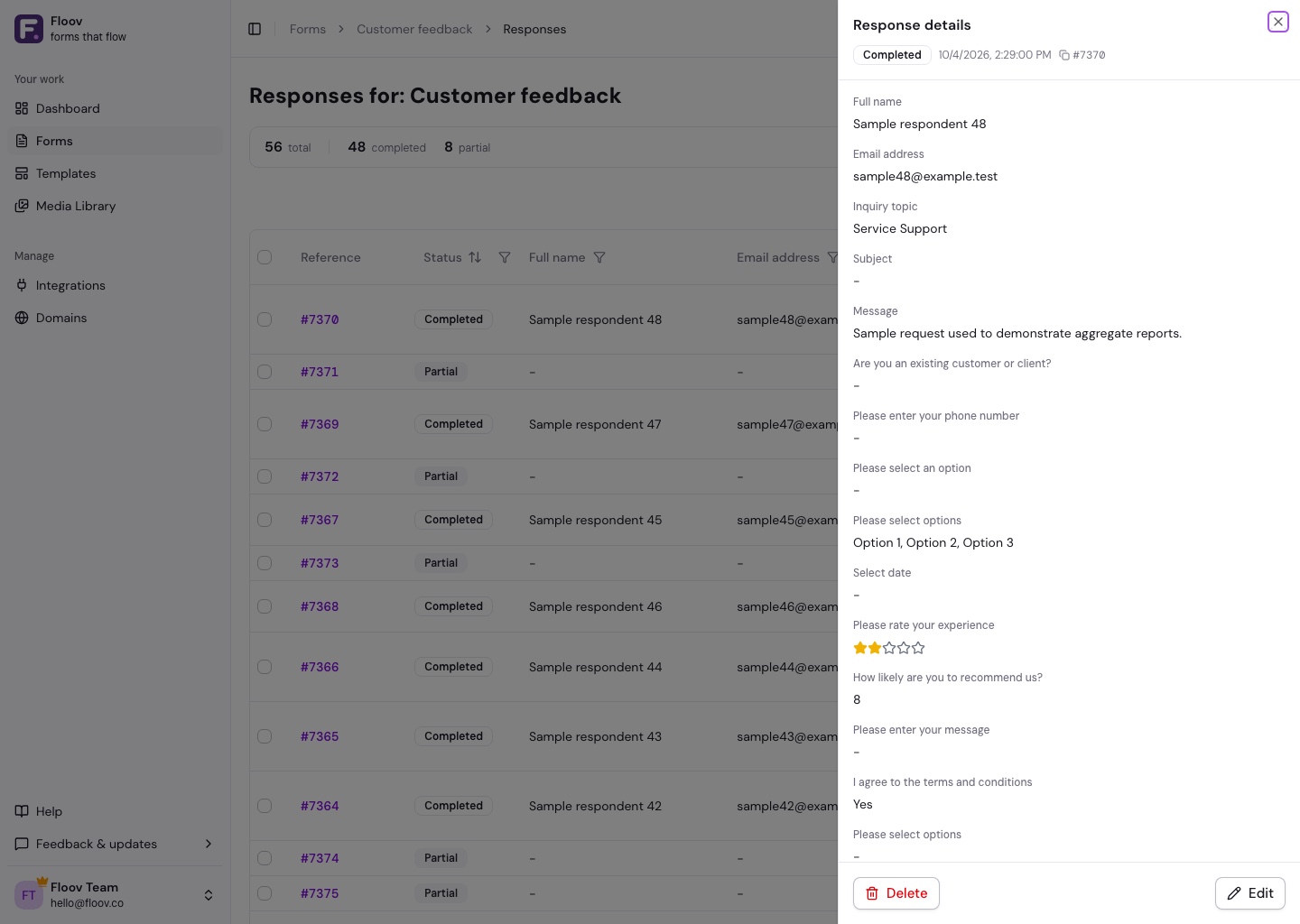
If you can edit the form, choose Edit, update the answers, and Save changes. This replaces the saved values, including in exports.
Uploaded files cannot be replaced. Remove permanently deletes an attachment while keeping the response. E-signatures are read-only and can only be removed by deleting the response.
Export or Delete
Choose Export for CSV or Excel. To delete responses, select rows and choose Delete selected, or delete one from its details. The header checkbox selects the current page only. Deletion is permanent.
Calculated Results
Calculated values are marked Calculated and are read-only. Filter and sort them numerically; a dash means no result was saved. Changing source answers recalculates with that response’s original published formula. It does not resend emails or integrations. Publishing a new formula does not change previous responses.