
Account Setup
Registration, email verification, and the dashboard you'll land on after signing up.
Creating your account
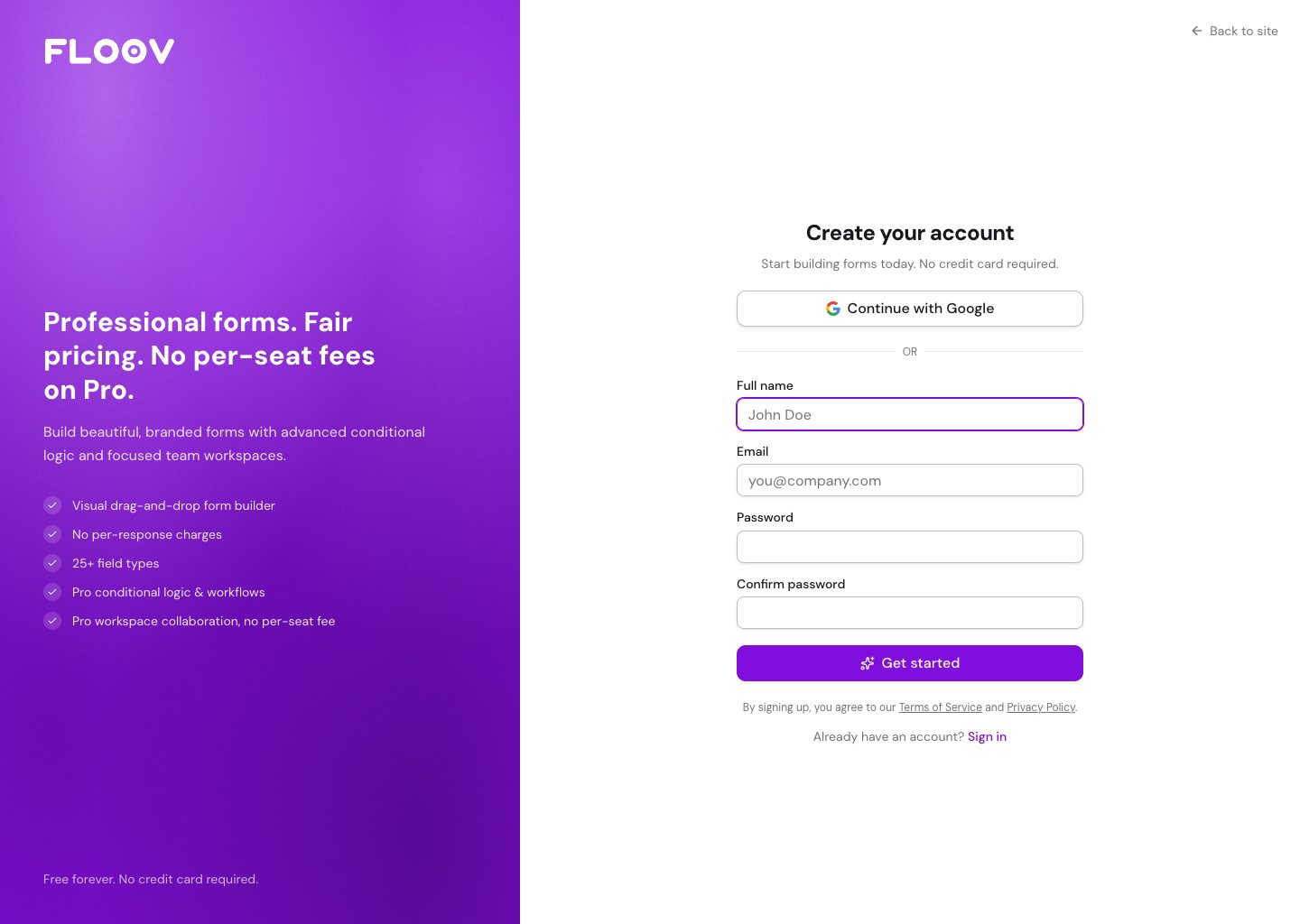
Go to the registration page. You can create an account with Google, or enter your name, email, and a password and click Create account.
Verifying your email
Floov sends a verification link to the address you registered with. Click it to activate the account. Google accounts with a verified email are marked verified automatically. You can't open the dashboard or build forms until verification is complete.
If the email doesn't arrive, check your spam folder. The verification screen has a resend option.
Your first workspace
A default workspace named after your first name (for example, Alex’s workspace) is created the first time you sign in, and that's where new forms live by default. If no name is available, it is called My workspace. You can rename it, create more workspaces (up to 25 per account), or invite existing Floov users to collaborate.
To add a workspace, open Forms from the sidebar, then use the workspace selector and choose New workspace. You'll be the owner of anything you create.
Your profile
Open profile settings to update your name, change your email (you'll need to verify the new address), or reset your password. The same page is where you delete your account if you ever need to.
The dashboard
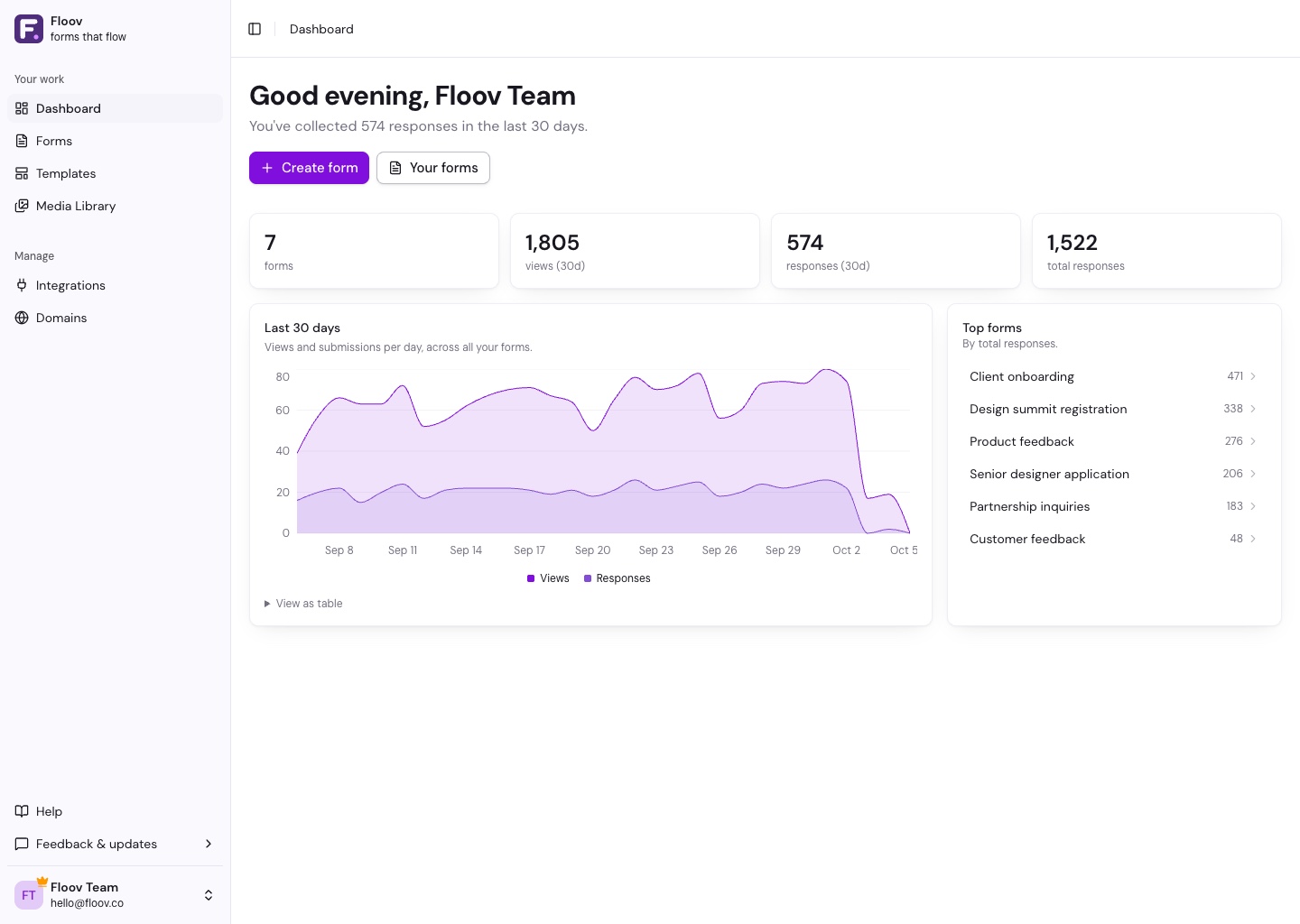
The dashboard links to a new-form flow and your form list, and summarizes form count, recent responses, total responses, and analytics once your forms receive traffic.
Where to go next
For a product overview, return to Getting Started. Ready to build something? Follow Quick Start or the contact form example. If you're setting up a team, read the workspaces overview, which covers roles and invitations.