
Creating and Configuring Reports
Create a report from a form's Reports page. A report begins private, so you can configure and preview it before anyone outside the workspace can open it.
Create a report
- Click New or Create report.
- Enter a title and an optional description.
- Click Create report. Floov keeps it private and opens it in the editor.
A new report initially includes the aggregate-safe questions available across the form's published versions. You can remove, restore, reorder, or change the visualization for each one.
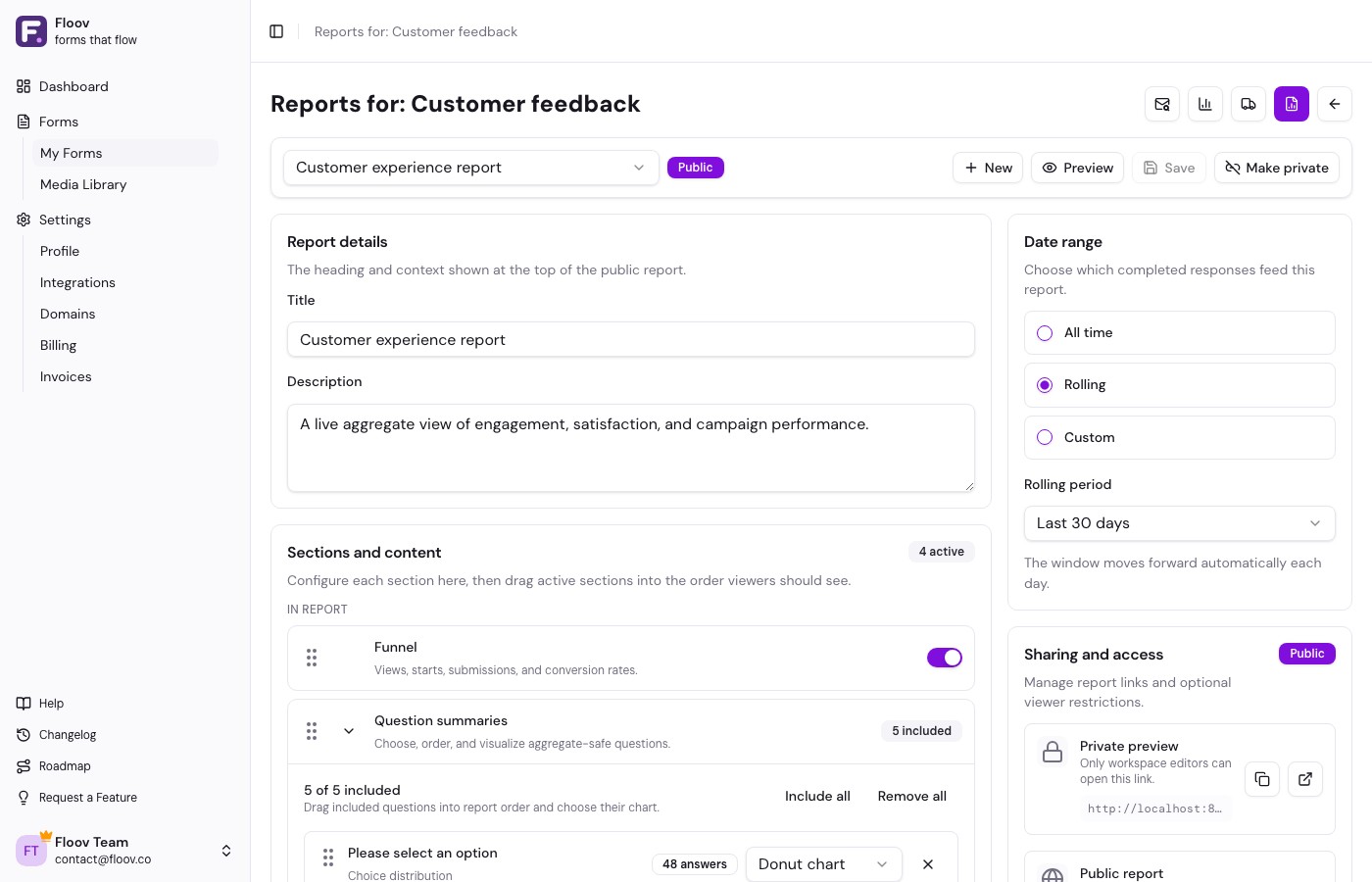
Report details
The title and description appear at the top of the public report. Use a title that identifies the audience or purpose, such as Quarterly customer survey, and use the description to explain the date range, campaign, or decisions the results support.
Date range
Choose which completed responses feed the report:
- All time – every completed response from the form's creation date through today
- Rolling (Pro) – the last 7, 30, 90, or 365 days, moving forward automatically each day
- Custom (Pro) – an optional start date, end date, or both
For a custom range, a start date alone means results since that date; an end date alone means results through that date. Leaving both dates empty is the same as All time. Future dates are not accepted.
Save and preview
The sticky command bar shows Unsaved changes whenever the editor differs from the saved report. Click Save before Preview, Make public, or Make private becomes available. Switching reports or leaving with unsaved work asks for confirmation.
Preview opens the aggregate report in a modal using current saved settings. The private preview URL is authenticated and works only for workspace editors.
Managing several reports
Use the report selector in the command bar to move between reports. Free supports one report per form; Pro supports up to 10. Each report can have its own title, date range, questions, sections, access controls, and public link.
Related
Continue with sections and charts, then publish and share the result. For the privacy and plan summary, see Reports overview.