
Exporting Data
Download responses as Excel or CSV for analysis or an offline copy.
Export Responses
- Open the form's Responses page.
- Apply any search, status, date, or answer filters you need.
- Choose Export, then Excel (.xlsx) or CSV (.csv).
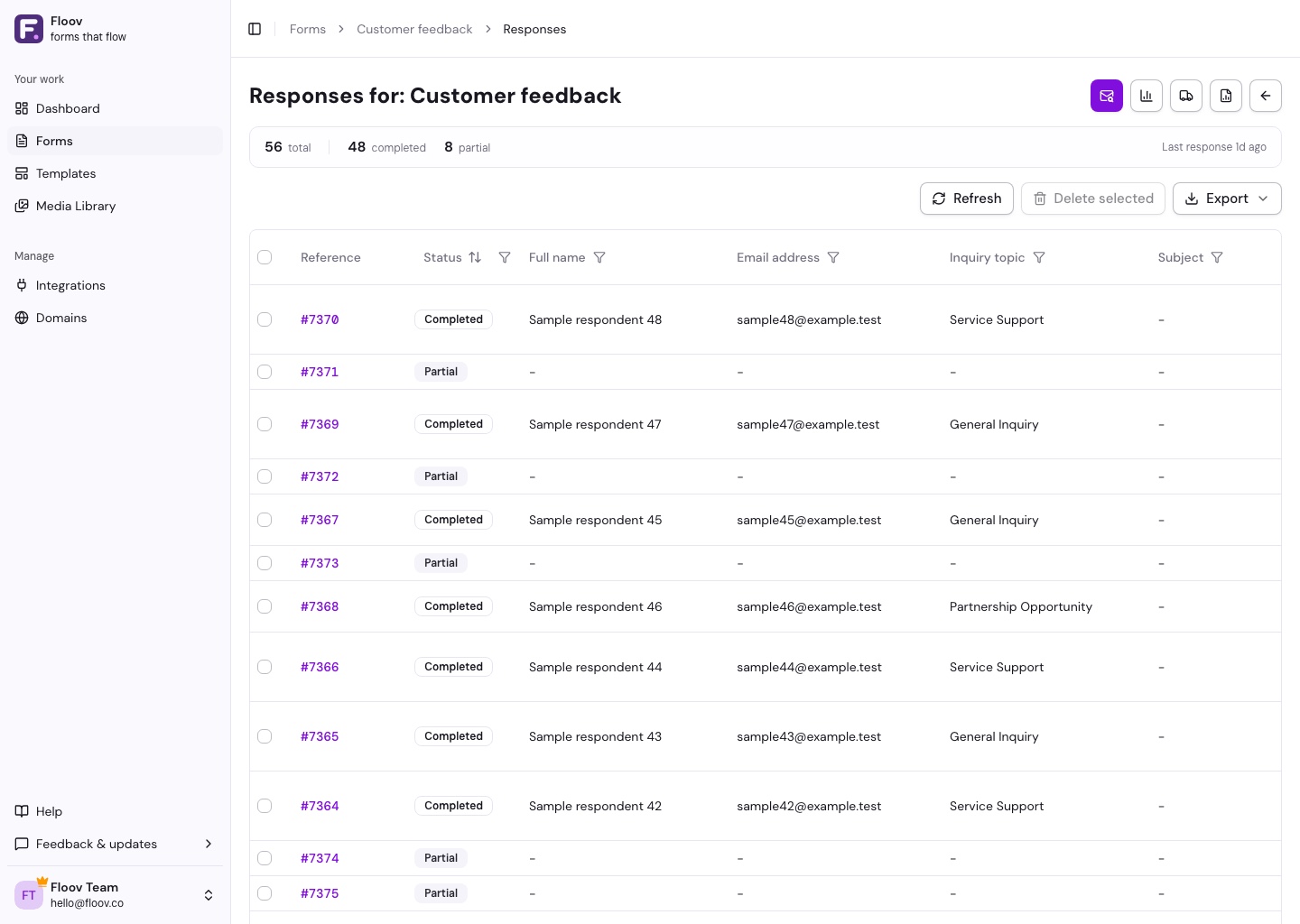
The download includes all matching responses, across every page of the table.
What's Included
Each row contains the response Reference, status, answers, and submission date. Hidden fields appear as extra columns. Multiple selections and address parts are combined into readable values; rankings keep their order.
Column headings match the latest published question labels in the Responses table. Earlier answers stay in the same columns, and deleted questions remain included when they appeared in an older published version.
File uploads and e-signatures appear as links, rather than attached files. Open them while signed in to Floov with access to the form's responses.
Choose Excel for a formatted spreadsheet or CSV for importing into other tools.
See Viewing Responses for filters and editing, or Hidden Fields for campaign data.
Calculated results are included using their saved values, including zero. Missing results stay blank. Excel exports numeric cells; CSV preserves the decimal text. Exports use the same filters and numeric sort as Responses.