
Editor Overview
The form editor is where you add questions, arrange pages, and customize your form. Changes save automatically as you work.
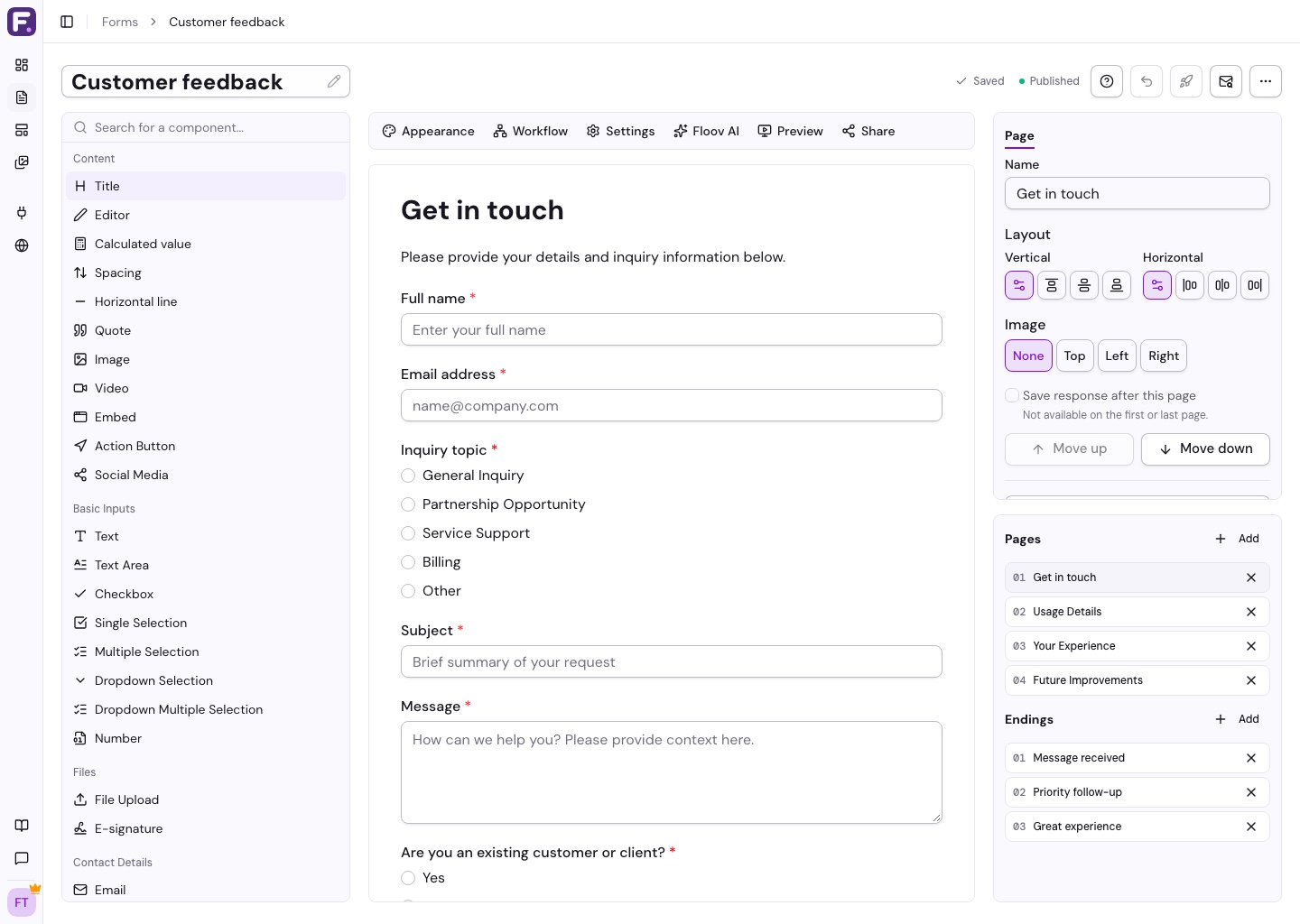
Find Your Way Around
On desktop, opening the editor collapses the sidebar to its navigation icons to give the canvas more room. You can expand it with the sidebar toggle while editing. When you leave the editor, your previous full or compact sidebar setting is restored. On mobile, the toggle opens or closes the sidebar.
- Toolbox: drag fields onto the form. On smaller screens, open Add fields and tap a field.
- Canvas: select a field to edit it. Its toolbar lets you reorder or delete it, or choose Move to page to move it to another page while keeping its settings and references.
- Field settings: change labels, instructions, choices, and required answers. On smaller screens, use the selected field's pencil button.
- Pages: switch pages, add new ones, or select an ending to edit the thank-you message.
Customize and Test
Use Appearance for themes and layout, Settings for notifications and form preferences, and Workflow for conditional routes. Floov AI can suggest changes for you to review.
Choose Preview to try the draft at desktop or mobile size. Choose Publish when it is ready, then share the public link.
In Title and Editor text settings, type @ to insert an answer directly into your text.
Saving Your Work
The header shows your save status. Draft edits do not change the live form until you publish again. Revert restores the published version and discards draft changes.
If another tab or person changes the form, autosave pauses. Copy any unsaved work you need before reloading.
Continue with pages, appearance, or publishing.
Show a question only when other answers match using Field Visibility (Pro).
Use Settings > Calculations for numeric formulas and answer scores. Display results with the Calculated value content block or insert them with @.