
Selection Fields
Selection fields let respondents choose from options you provide.
Choose a Field
- Checkbox: one yes/no choice, such as agreeing to terms. Making it required means it must be checked.
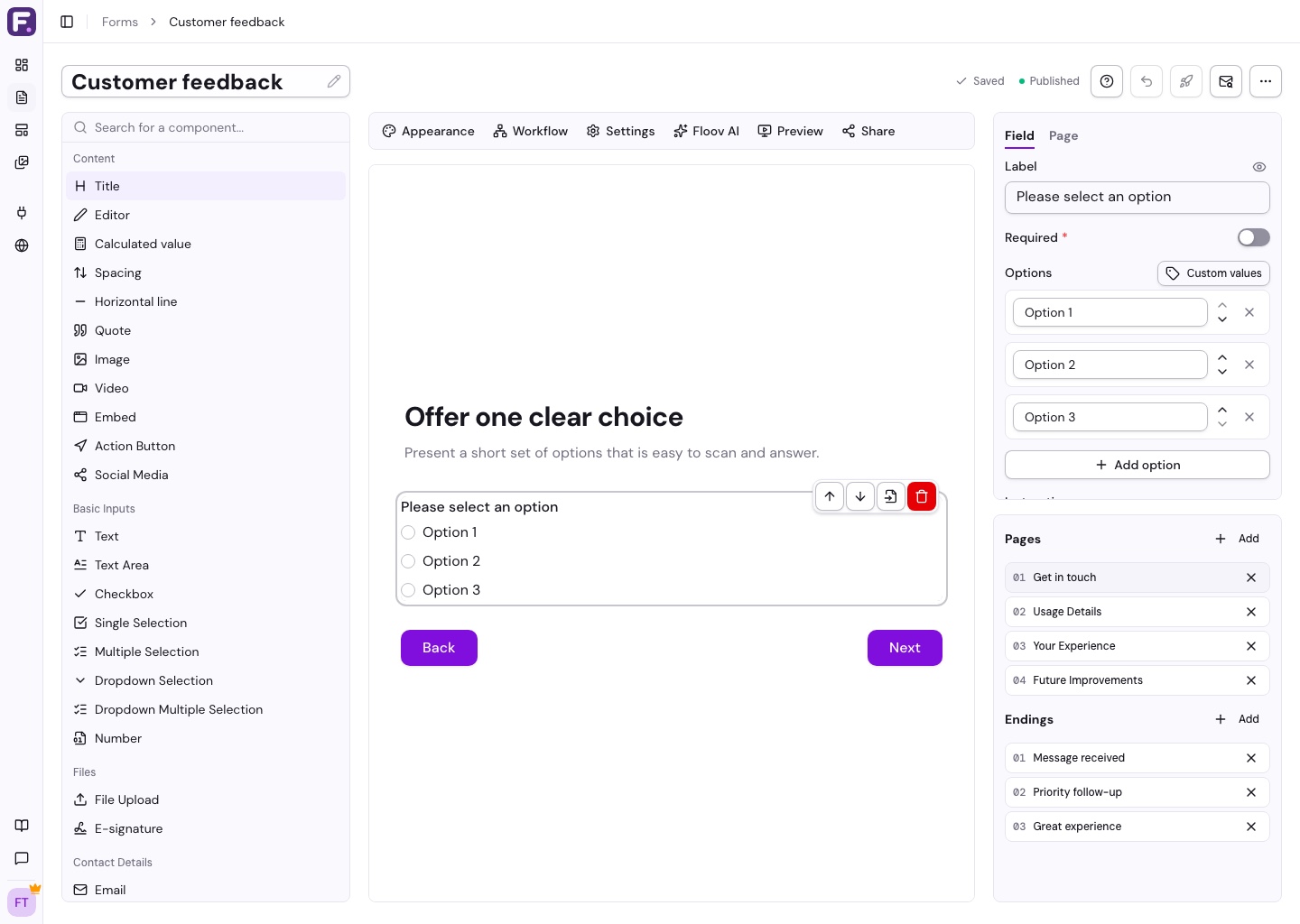
- Single Selection: choose one answer from a visible list.
- Multiple Selection: choose several answers from a visible list.
- Dropdown Selection: choose one answer from a compact menu. Longer lists offer search.
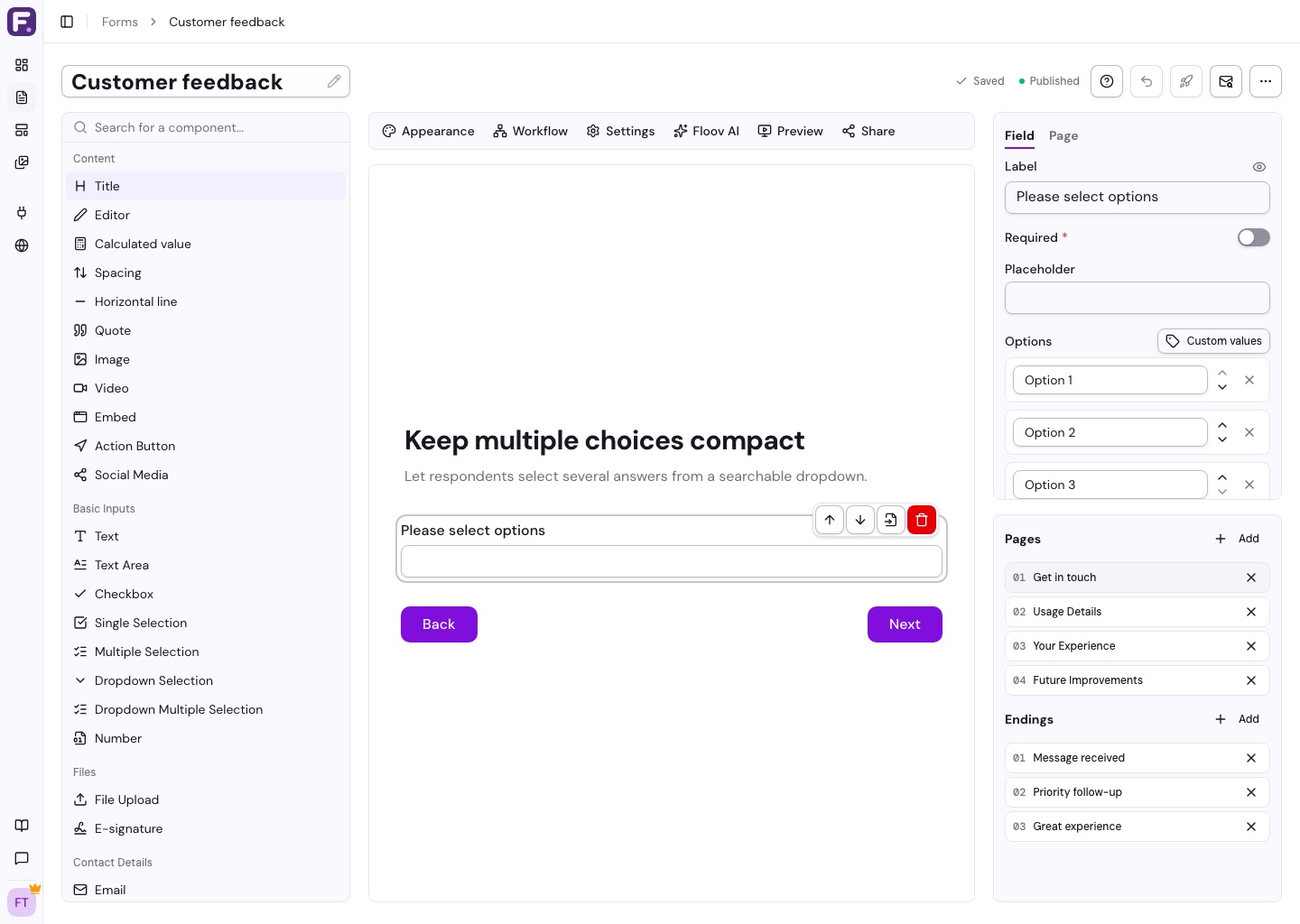
- Dropdown Multiple Selection: search and choose several answers, shown as tags.
Add Your Options
Select the field, edit its question, and use Add option to add choices. Reorder them with the arrows. Add instructions or mark the question required as needed.
Multiple-choice fields can limit how many options respondents select. Dropdowns also let you set a placeholder.
Labels and Values
An option's label is what people see. Its optional value is what you store, such as showing “United States” while saving “US”. Leave values blank if you only need the labels.
Link Consent Text
For a standalone Checkbox, choose Add link and enter the link text and URL. Add {link} to the label where the link should appear, or leave it to appear at the end.
See Rating Fields for scales, or Conditional Logic to route by an answer.