
Publishing Forms
Publishing makes your form available at a public link so people can fill it in.
Publish and Share
- Open your form and choose Preview to check it.
- Choose Publish to make the draft live.
- Open Share to copy the public link, share to a social channel, or get embed code.
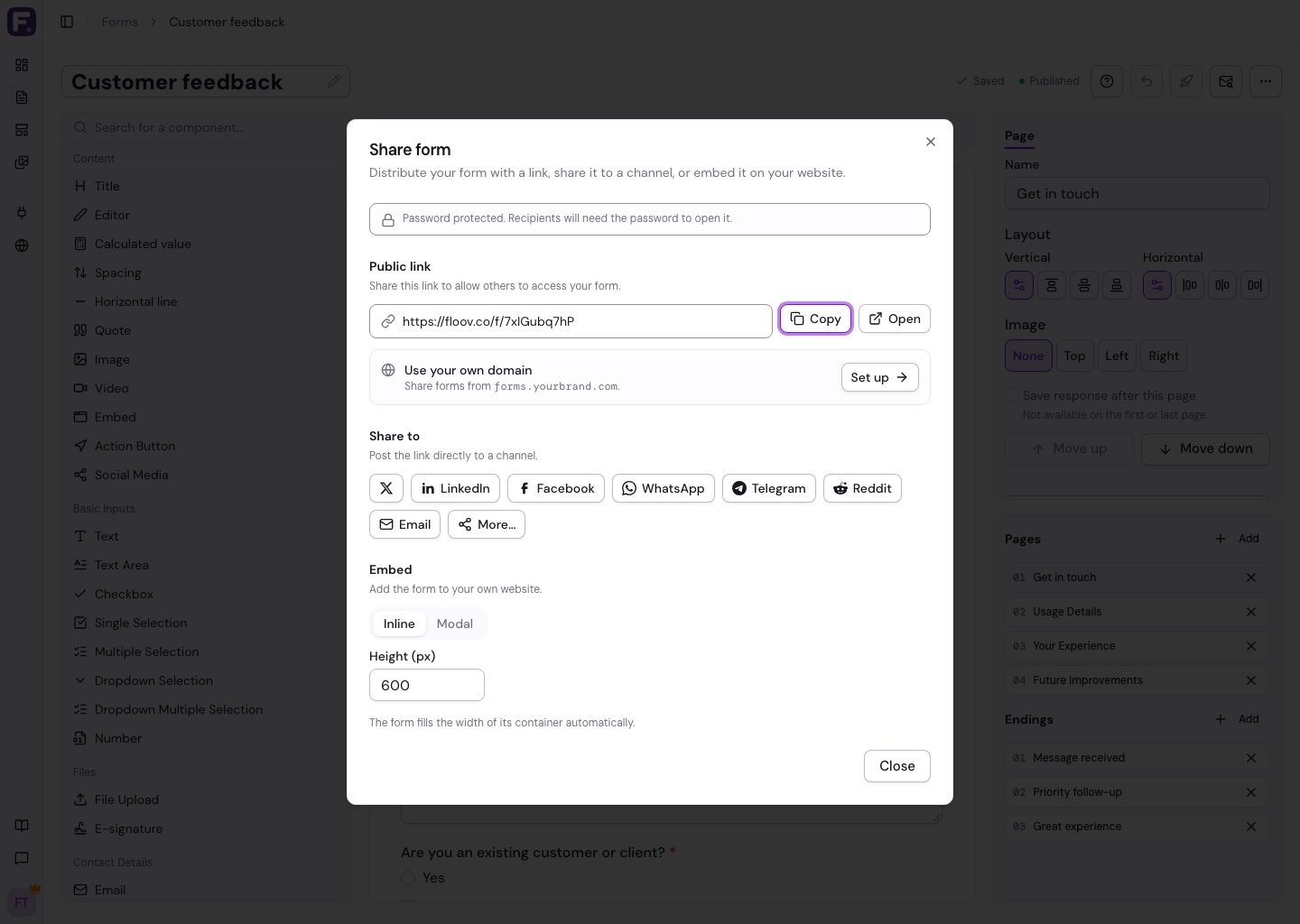
Your form has a link such as https://floov.co/f/your-form. Anyone with the link can respond unless you add access restrictions.
If you have a custom domain, select it in Share to use your branded link and embed code.
Update a Live Form
You can keep editing the draft while the published form collects responses. Publish again when you want the changes to go live. This also applies to changes in notifications and access settings.
Changing questions, choices, validation rules, or page structure creates a new published version, even if there are no responses yet. Someone may already be filling in the previous version. Changes to labels, design, integrations, or other settings update the current version.
People who already have the form open can finish the version they started, and their answers stay attached to that version. Its integration settings handle delivery. Current closure, password, CAPTCHA, response limits, and duplicate-response restrictions still apply.
Publishing checks enabled integration connections and field mappings. Reconnect unavailable accounts, fix mappings, or turn off the affected integration before publishing.
Update Only Integrations
In the form editor, open Settings > Integrations and choose Apply to live form at the top of the Integrations tab. This applies the integration and analytics tracking settings while keeping other draft changes unpublished. Publish the form normally first if it is not live yet.
Mappings must use fields available in the live form. If you added a question or hidden field in the draft, publish it before applying a mapping that uses it. Google Sheets can also retain historical fields for syncing existing responses. People who already have the form open can continue filling it in. Queued deliveries that have not started use the updated integration settings; completed deliveries are not sent again.
See the Mailchimp, Google Sheets, and Webhooks guides for setup.
Existing responses stay readable, even if you later rename or remove a question.
Stop Collecting Responses
Use Close form in Access settings and publish the change. This keeps the form and its responses while showing visitors a closure message. See Close a Form & Set Limits.
To place the form on your website, follow Embedding Forms.
Connect HubSpot to create or update CRM contacts from completed responses. Its mappings can be applied separately using Apply to live form.