
Webhooks
Webhooks POST each form submission as JSON to a URL you control. They're the way to feed Floov responses into your own backend, a CRM, or an automation tool that speaks HTTP.
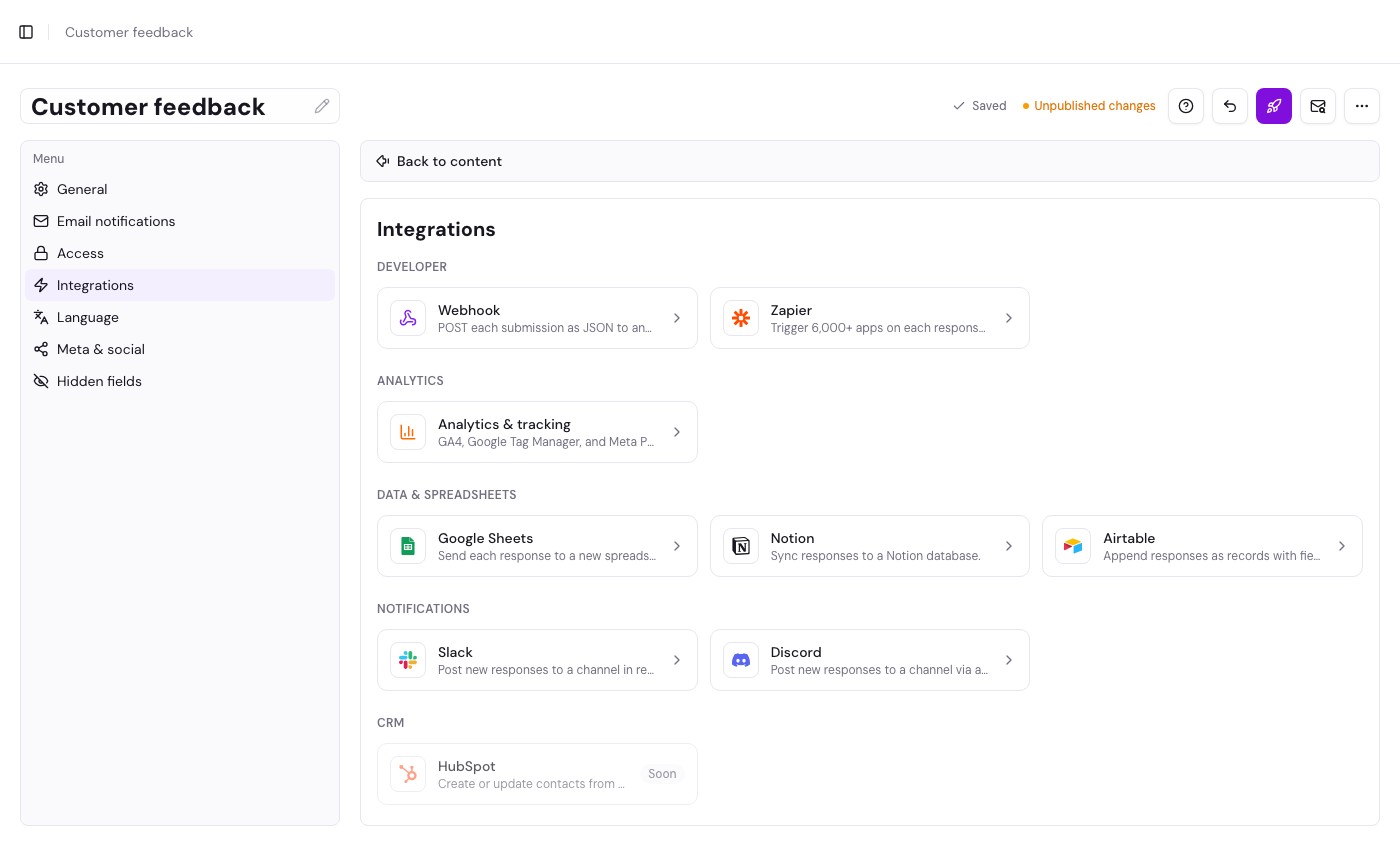
Setting one up
- Open the form in the editor
- Click Settings in the toolbar
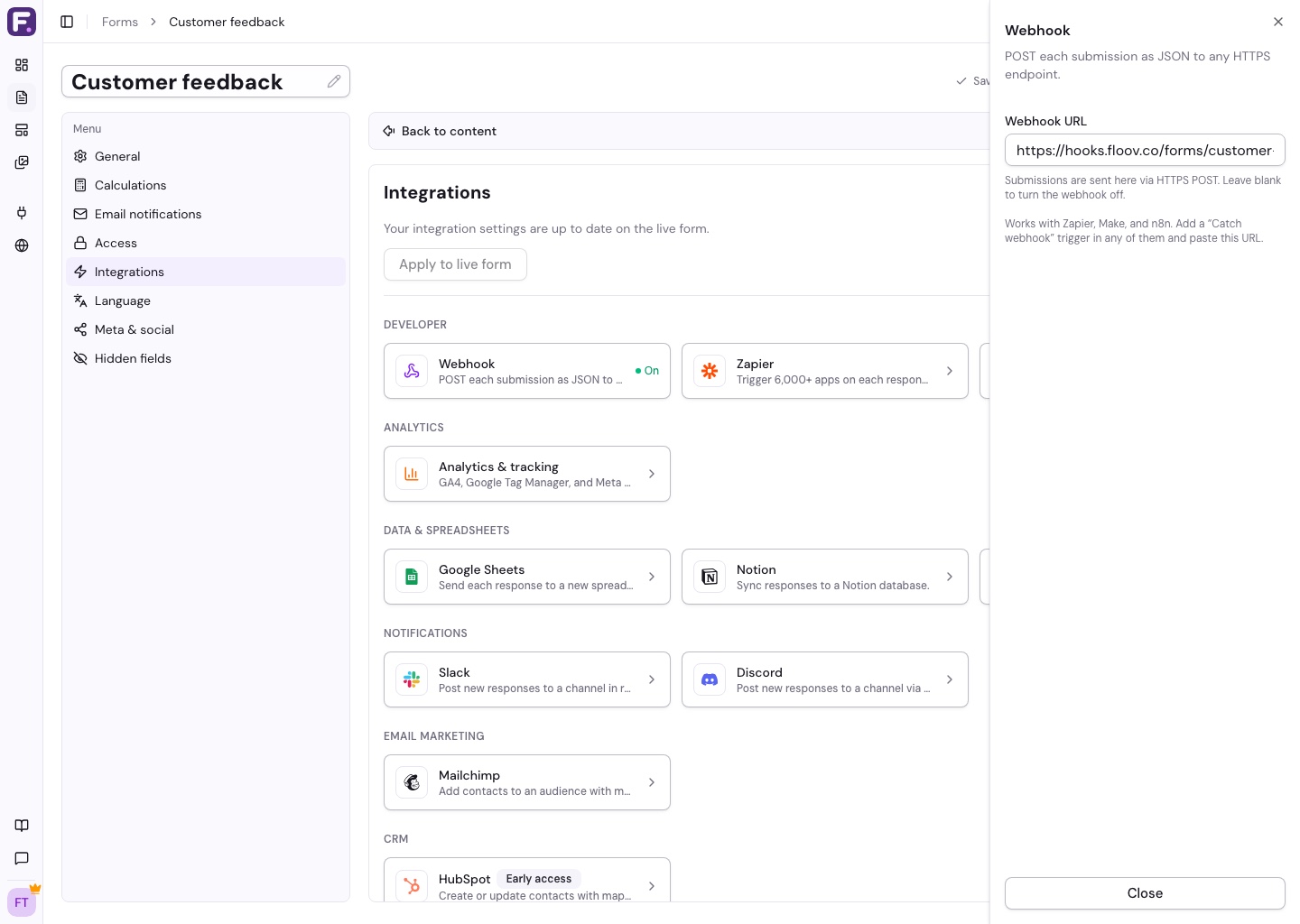
- Go to the Integrations tab and open Webhook
- Paste your Webhook URL: a valid
https://URL turns the webhook on; clearing it turns it off
The URL must start with https:// and point to a public host. For security, plaintext http:// URLs and addresses on private or internal networks (including localhost) are rejected; submissions are only ever delivered to a public HTTPS endpoint. Floov validates the URL before it saves.
What Floov sends
On every submission, Floov:
- Stores the response as usual
- Sends a POST request to your URL
- Uses a JSON body containing the response data, including any hidden field values
Your endpoint needs to accept application/json. It must return a 2xx status to indicate success. Floov never follows redirects; a 3xx response is logged as failed, so the configured endpoint must accept the request directly.
What to do with it
- Custom backend – route submissions straight into your own application
- CRM – post leads into a CRM that exposes a webhook endpoint
- Automation platforms – n8n's Webhook node or Zapier's "Webhooks by Zapier" trigger can catch Floov submissions and fan them out. For a direct Floov trigger in Zapier, use the Zapier integration
- Slack – use the Slack integration to post responses directly to a channel. If you send the generic webhook payload to a Slack incoming webhook instead, use middleware to reshape the JSON first
- Google Sheets – no webhook needed: use the native Google Sheets integration to append each response as a row
Troubleshooting
- URL validation error – the URL must use
https://and resolve to a public host;http://,localhost, and private or internal addresses are blocked - No data arriving – republish the form after enabling the webhook, then submit a test response
- Endpoint rejecting the request – confirm it accepts
application/jsonand returns a 2xx status - Check the log – the form’s Deliveries page (from the editor menu) shows every delivery attempt, its status, and the error for any that failed, for the last 30 days
In Deliveries, Webhook identifies the URL configured in the form editor. Make and Zapier identify recognized connected apps. API webhook identifies a subscription registered through the API whose app could not be identified; the label alone does not mean delivery failed.
Built-in alternatives
For a direct setup, see the Zapier, Slack, Google Sheets, Airtable, Notion, and Discord guides. For Make scenarios, use the Floov app in Make.
Related
Pair webhooks with email notifications, browse submissions in Viewing responses, or pull data out via Exporting data. To measure views and conversions, add analytics & tracking.
For Make scenarios, see the Make setup guide.
For an already published form, you can also close this integration panel and choose Apply to live form at the top of the Integrations tab. This updates integrations and tracking without publishing other draft changes. New questions and hidden fields must be published before mapping them. See Publishing Forms.
Calculated results are included with the saved submission values, even when they are not displayed in the form. They use decimal strings or null for no result. Editing a saved response updates its calculations without sending the webhook again.