
E-signatures
Pro. E-signature lets respondents draw a signature with a mouse, touch screen, or stylus.
Add a Signature Field
- Add E-signature from the toolbox's Files group.
- Set its label and instructions.
- Turn on Required if a signature is needed, then publish.
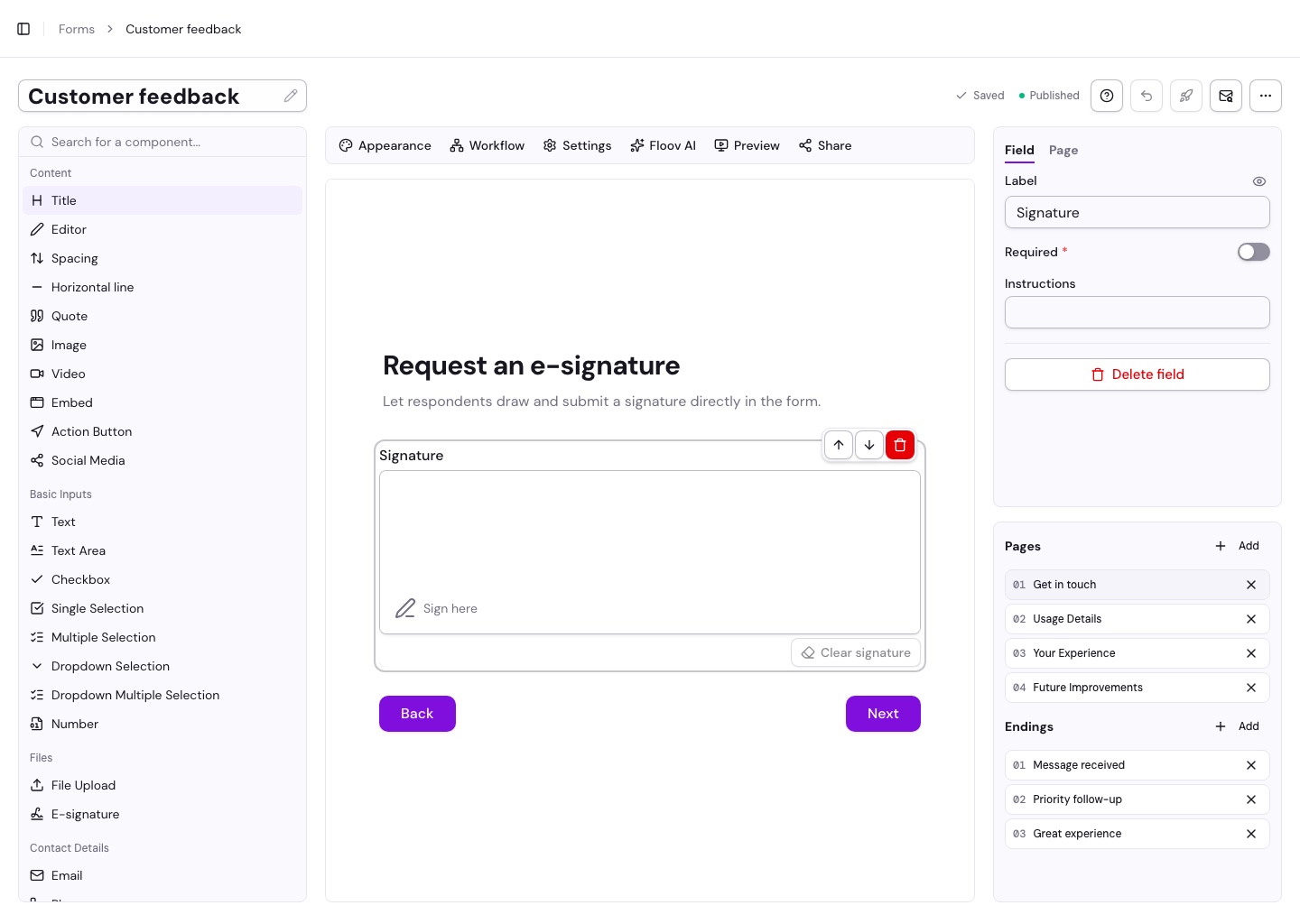
Respondents can choose Clear signature to start again. If they return to saved progress after a reload, they must sign again.
View Signatures
Signatures are saved privately with completed responses. Open one from Responses while signed in with permission to view it.
Exports include a link to the signature. Signatures are read-only: they cannot be replaced while editing a response. Deleting the response removes its signature.
What It Captures
This field collects a handwritten signature image. It does not verify identity, sign a PDF, or issue a digital certificate. Choose consent wording and any additional checks appropriate to your process.
The workspace owner needs active Pro to collect signatures. See Billing & Plans or Exporting Data.