
Input Fields
Input fields collect typed answers such as names, messages, numbers, and contact details.
Choose a Field
- Text: short answers, such as a name or company.
- Text Area: longer answers, such as feedback or a message.
- Number: quantities or amounts. Set minimum, maximum, and step values, and an optional prefix or suffix.
- Email: checks the email format. Use this field for respondent confirmation emails.
- Phone: a phone number with a country-code selector. Choose a default country or use auto-detection.
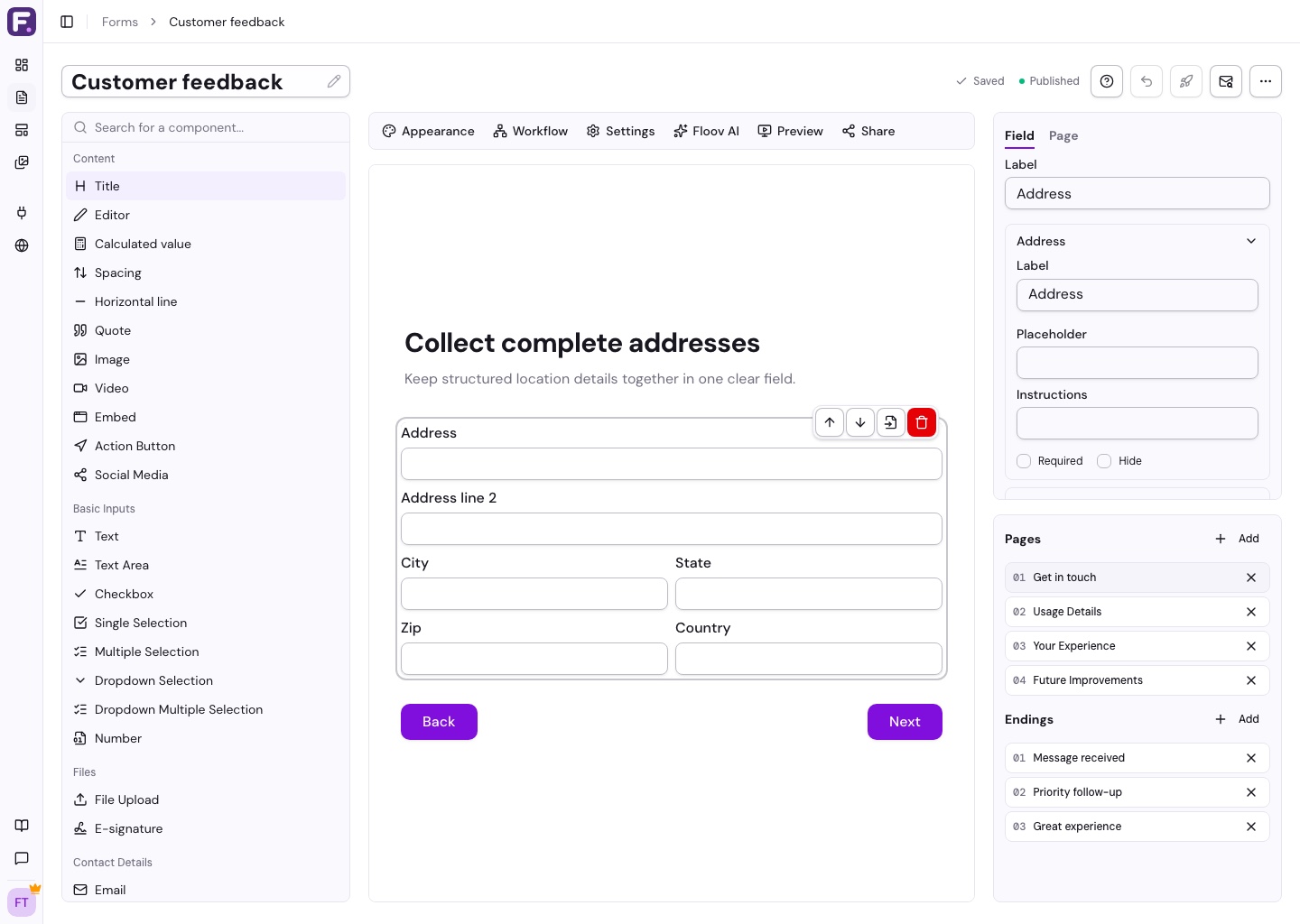
- Address: a mailing address with separate parts.
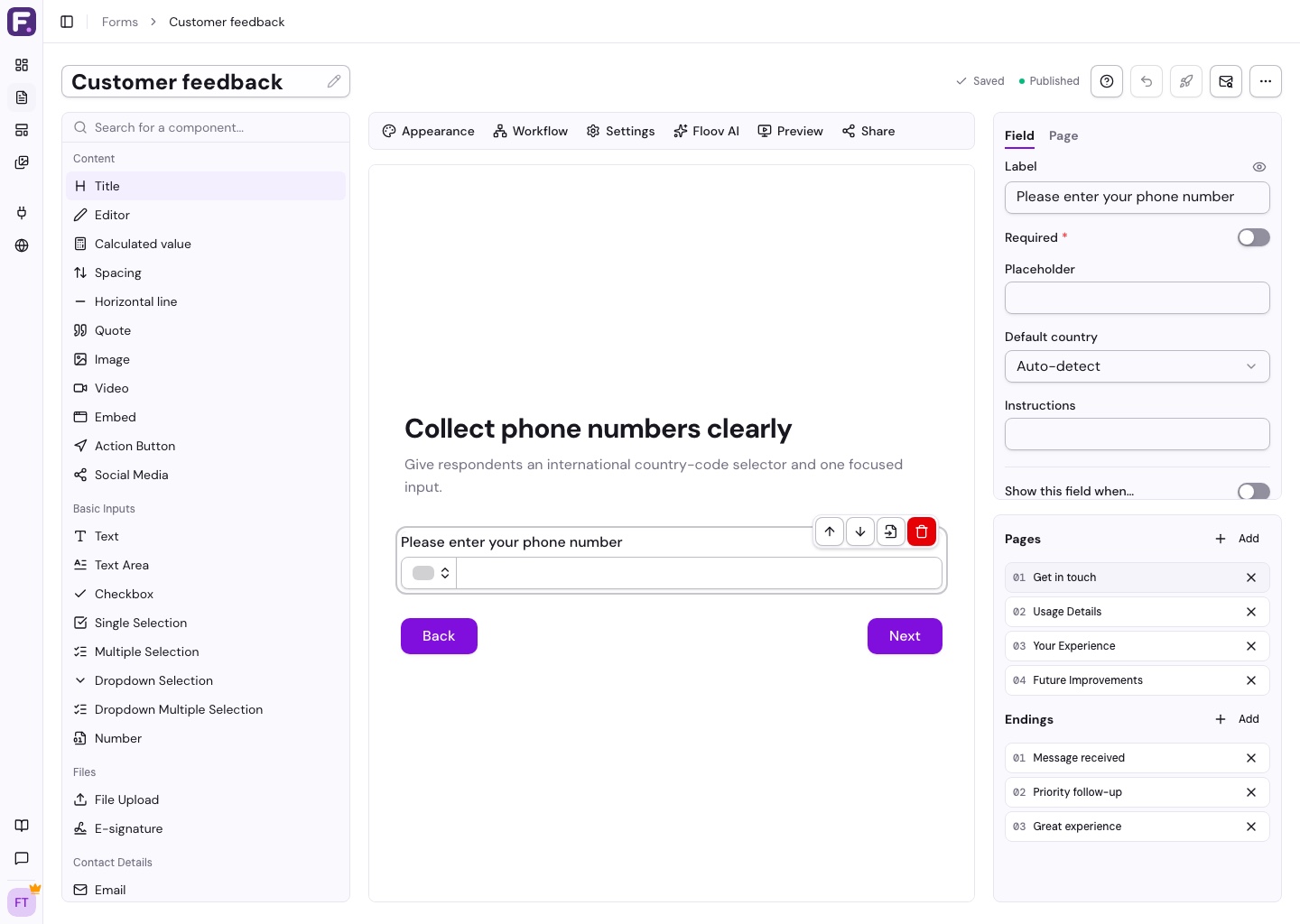
Configure the Question
Add a field, then select it to edit its label and instructions. Use a placeholder for an example answer and Required when the respondent must answer. Text fields also offer character limits. Labels are optional: leaving one blank keeps the visible label empty without affecting answer collection or Required validation. Response columns and question pickers use a fallback name, so descriptive labels are easier to identify when several fields have the same type.
Personalize Labels and Instructions
Type @ in a question label or its instructions to insert an answer from another question. The builder shows the question name, while Preview and published forms show its current answer. Unanswered and hidden answers appear blank.
Response tables, exports, and integrations use a name generated from your label, with inserted question names in brackets. For example, a label personalized with the Name answer appears as Items for [Name] in responses. Editing the label or renaming its source question updates this name automatically, while the field ID stays unchanged. If the visible label is blank because its source has no answer, screen readers use the generated name to identify the question.
Address parts support answer insertion in their labels and instructions. The main Address label names the whole address in responses. See Insert Answers into Text for more details.
Customize an Address
Address includes two address lines, city, state or province, postal code, and country. Each part has its own label, placeholder, instructions, visibility, and required setting. Hide the parts you do not need.
For other answer types, see Selection Fields and Date & Time Fields.
You can also insert calculated results with @ in labels and instructions. Placeholders do not support these references.