
Email Notifications
Use Settings > Email Notifications in the editor to receive new-response emails or send a confirmation to respondents.
Receive Notifications
- Turn on Send notification email.
- Enter the recipient address.
- Write the subject and message. Optionally set a Reply-to address.
Send Respondent Confirmations
Pro. Add an Email field to your form first.
- Turn on Send email to responder.
- Choose the form's Email field as the recipient.
- Write a confirmation message and set a Reply-to address if needed.
Include Answers
Type @ in a subject or message to insert a field's answer. Questions are grouped by page. In messages, choose All answers for a complete summary. Unanswered and hidden answers appear blank in individual mentions. Subjects stay plain text and are limited to 255 characters after answers are inserted. You can also personalize question labels and instructions.
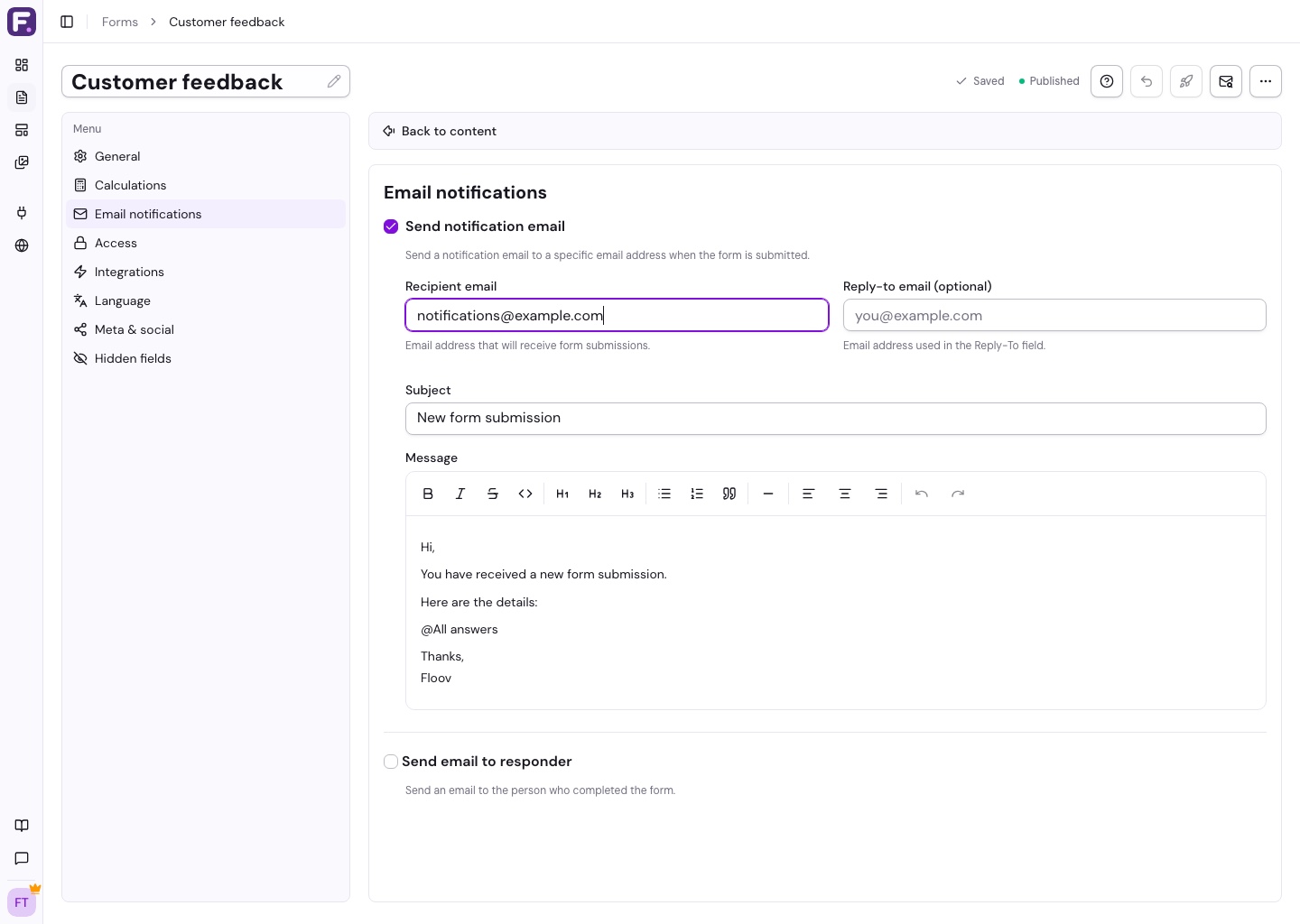
Publish your changes, then submit a test response through the public form to check delivery.
All submissions remain available in Responses.
Include Calculated Results
Type @ and choose from Calculations in the subject or message. Click the chip to set number or currency formatting and an empty placeholder. Emails use the saved result from the submission; All answers includes every saved calculation. Later formula or answer edits do not resend the email. Calculations are free; respondent confirmation emails remain Pro.