
Conditional Logic
Pro. Conditional logic sends respondents to different pages or endings based on their answers.
Create a Rule
- Open Workflow in the form editor.
- Choose Add logic or Edit logic on the page respondents will leave.
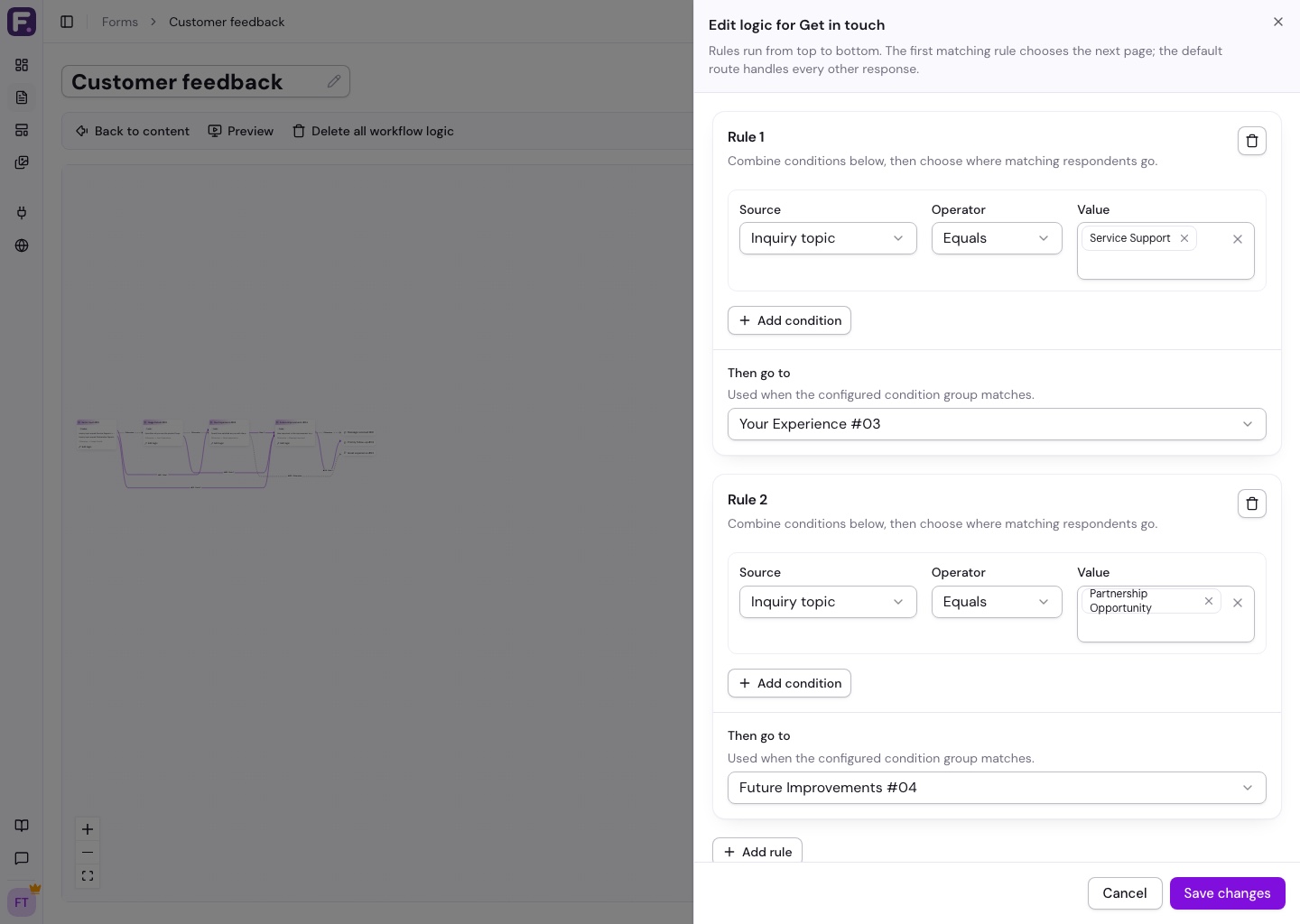
- Add a rule. Pick a field, a comparison, and the answer to check.
- Choose the Then go to destination and a default destination for other answers.
- Save, preview each path, and publish when ready.
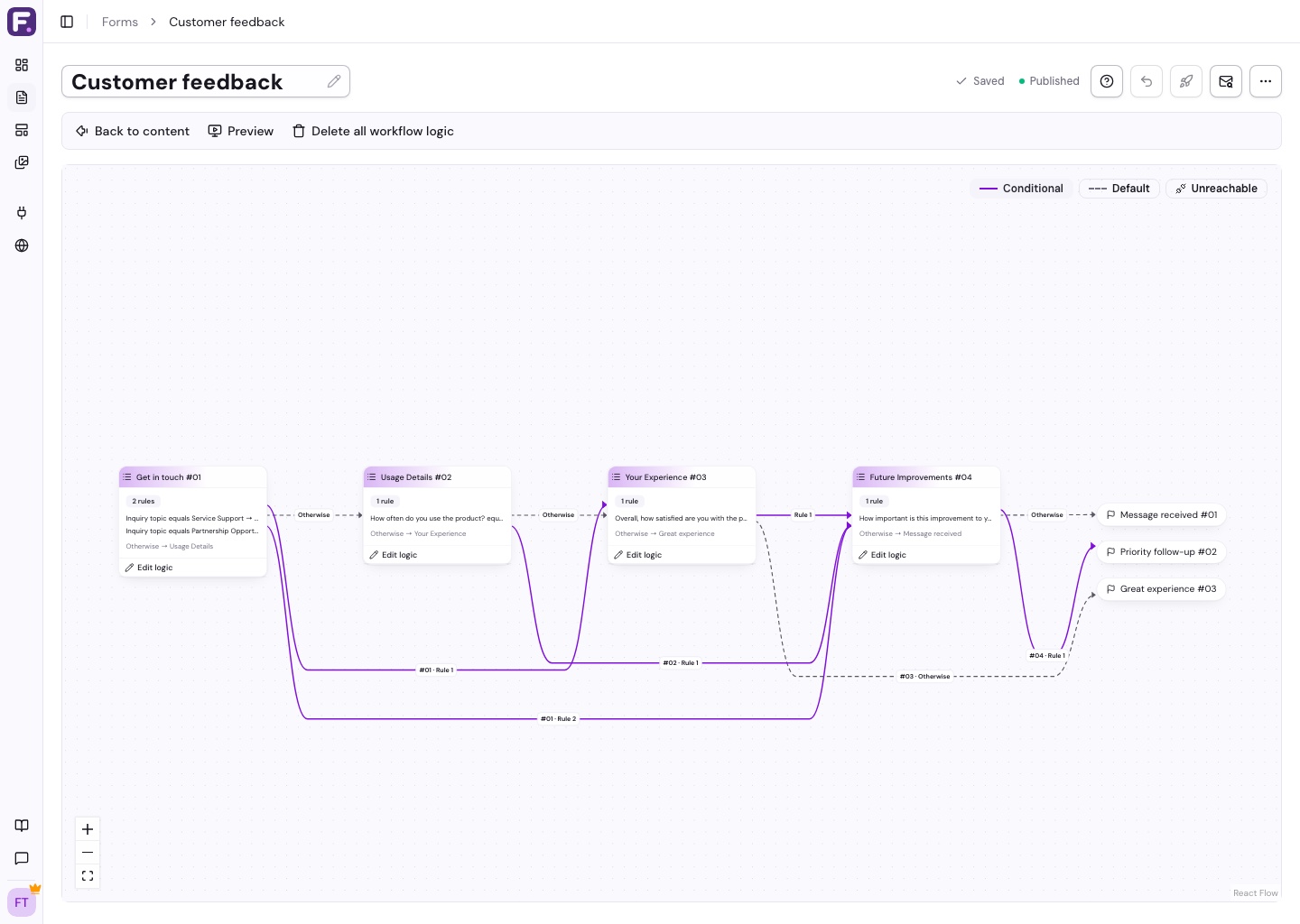
Rules run from top to bottom. The first match chooses the next page; otherwise, respondents follow the default route.
Example
For a satisfaction scale from 0 to 10:
- Scores of 6 or lower go to a feedback page.
- Scores of 9 or higher go to a referral ending.
- All other scores go to the standard thank-you ending.
Use AND when multiple conditions must match, or OR when either can match. Available comparisons depend on the question type.
Check Your Routes
Unreachable means no path leads to a page from the start. Loop means a route can repeat indefinitely; fix the cycle before saving.
To return to a simple page order, use More workflow actions > Delete all workflow logic and confirm.
See Multi-Page Forms and Ending Pages.
Show or hide individual questions without changing pages with Field Visibility (Pro).
Route by a Score or Total
Choose a source from Calculations and compare its numeric result. For example, send a quiz score of 3 to a passing ending. Routes use the current answers when respondents continue; answers already entered still contribute if a later route skips their page. Preview Back navigation and unanswered sources. Calculations are free; page workflows require Pro.