
Layout & Structure
Layout fields shape how your form looks rather than what it collects. They handle spacing, visual breaks, and multi-column arrangements, and they don't store any response data.
Columns
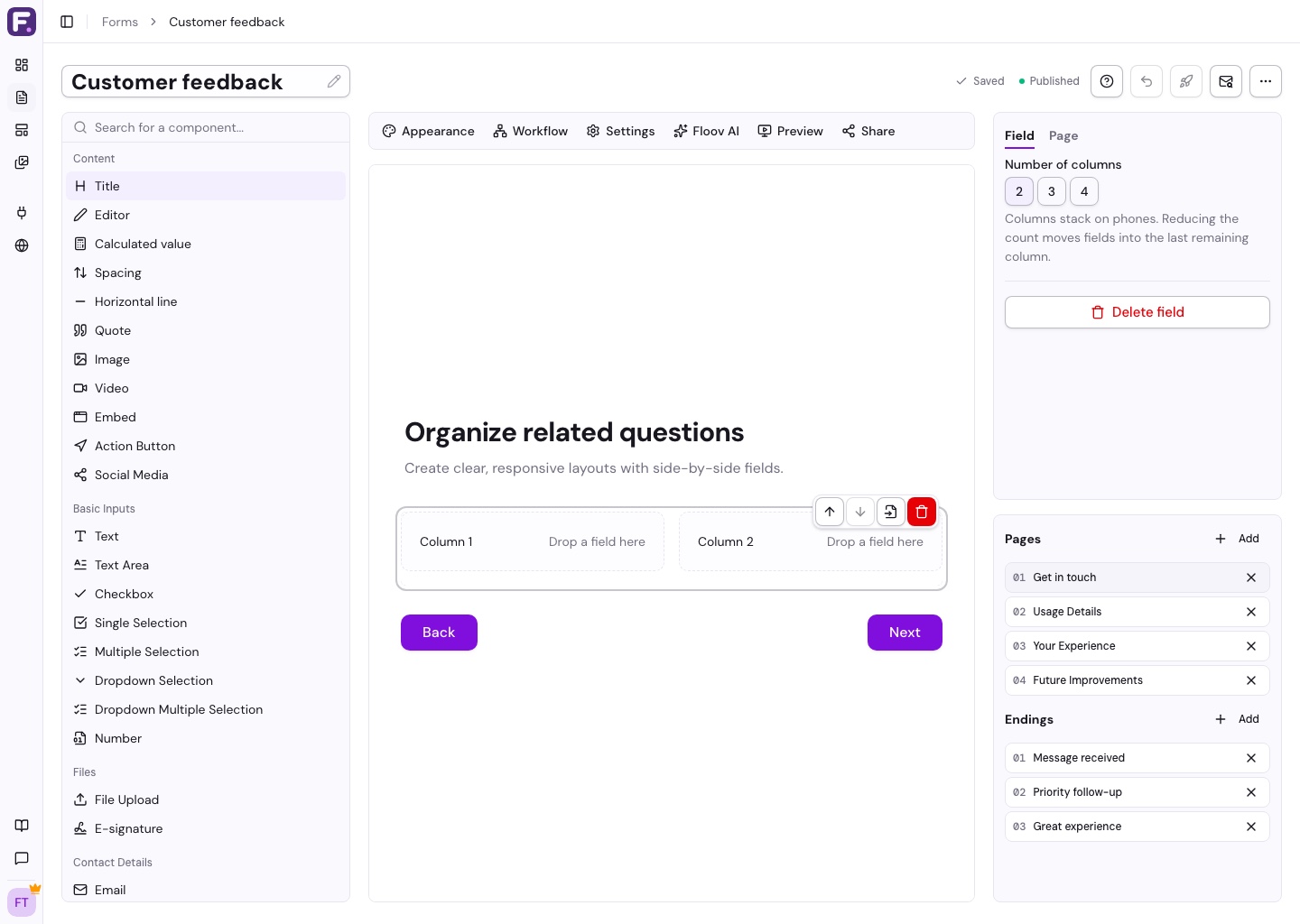
Splits part of your form into side-by-side columns. Columns are a container, so you drag the columns block onto the canvas first and then drop other fields into each column.
Settings:
- Number of columns - choose 2, 3, or 4 columns (default: 2)
Each column is a drop zone and can hold any combination of fields. Columns appear side by side on larger screens and stack on phones and in the compact editor. Reducing the number of columns moves fields from removed columns into the last remaining column, preserving their order and settings.
Tip: Columns work best with short fields, like First Name next to Last Name, or City and State. Long fields (Text Area, for instance) look cramped in a narrow column.
To move a whole layout to another page, select the Columns block and choose Move to page. Its fields move with it. You can also select an individual field inside a column and move just that field. See Multi-Page Forms.
Spacing
Adds vertical whitespace between fields. Use it to group related questions together or give a busy form some breathing room.
Settings:
- Size - small (sm), medium (md), large (lg), or extra large (xl)
Horizontal Line
A divider line for separating sections.
Settings:
- Thickness - small (sm), medium (md), or large (lg)
- Style - solid, dashed, or dotted
Putting it together
The layout fields are more useful in combination than on their own:
- A Title followed by Spacing makes a clean section header
- A Horizontal Line between major sections keeps things visually organised
- Columns are great for short, related fields that belong on the same row
- Putting Spacing either side of a Horizontal Line stops it from feeling cramped
Related
See Text & content fields for titles and images, Editor overview for a walkthrough of the builder, or Themes & appearance for form width and visual styling.