
Publishing and Sharing Reports
A report stays private until you deliberately make it public. The Sharing and access panel keeps the authenticated preview, public link, access restrictions, and appearance controls together.
The interface of public reports, private previews, and password pages appears in Romanian for Romanian forms and English for all other form languages. The viewer’s account language does not affect the report. Report titles, descriptions, question labels, and answer text remain exactly as authored.
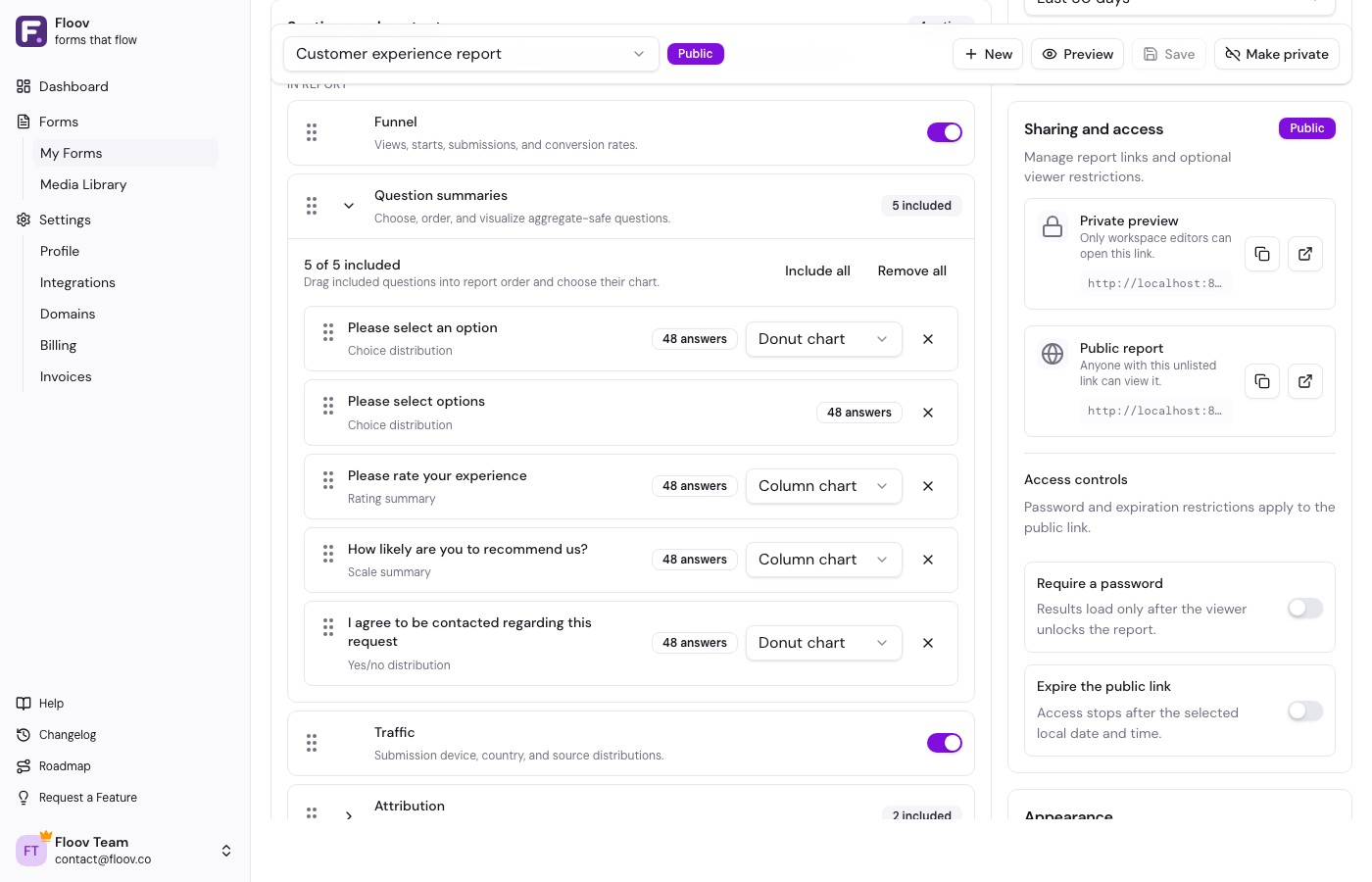
Private preview
The private preview URL works only for workspace owners, admins, and editors who can update the form. Use it to review the saved report without exposing it outside the workspace.
Make a report public
- Save every report change.
- Click Preview and verify the title, range, sections, charts, and privacy.
- Click Make public.
- Copy the new unlisted public URL from Sharing and access.
Anyone with an unrestricted public URL can view the aggregate report. The link does not grant workspace access and never exposes individual response rows.
Password protection
On Pro, enable Require a password and use at least eight characters. Share the password separately from the public URL. Changing the password signs out viewers who unlocked the old one.
Link expiration
On Pro, enable Expire the public link and choose a future local date and time. After that moment the public URL shows Not found. Setting a new future expiration reactivates the same public URL. Workspace editors can still use Private preview.
Appearance and branding
Pro reports can hide Floov branding. This choice affects both the public page and printed output. Free reports always show Floov branding.
Print or save a PDF
Open the public report and click Print / save PDF, then choose your browser's Save as PDF destination. The print layout keeps the funnel together, uses compact traffic summaries, and avoids splitting report cards where possible.
Make private or delete
Make private disables the public report and permanently invalidates its current public URL. Publishing it again creates a different URL.
Delete report in Report settings permanently removes the report and disables its public URL immediately. Deletion cannot be undone; the underlying form responses are not deleted.
Related
See Reports overview, creating reports, or sections and charts.