
Text & Content Fields
Content fields add headings, explanations, and media to your form without collecting answers.
Text Blocks
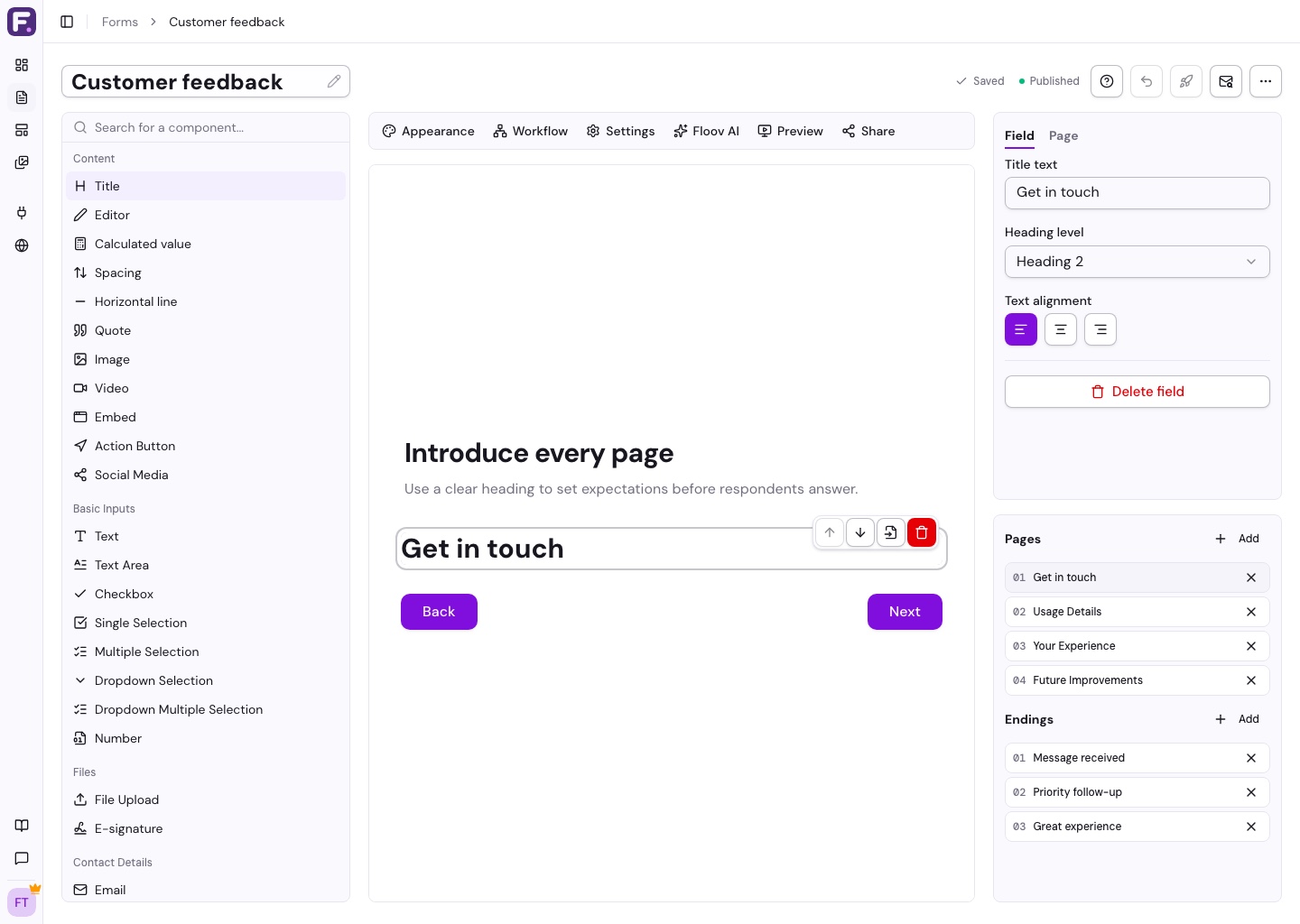
- Title: a heading with a size and alignment you choose.
- Editor: paragraphs, lists, links, and formatted text.
- Quote: a quotation with optional author details.
Insert Answers into Text
Personalize a Title or Editor block with answers from your form. In its text settings, type @, search for a question, and choose it. You can also use the arrow keys and Enter. The answer appears as a small question chip directly inside your text.
For example, type “Thanks, ” and insert your name question to create a personal greeting. Questions are grouped by page, and you can choose questions from any content page. Answer insertion also works on ending pages.
The builder shows the question name; Preview and published forms show the current answer. Unanswered and hidden questions appear blank. Multiple choices and address parts are separated by commas, and file questions show the selected file name. Signature questions are not available.
Renaming a question or using Move to page keeps the reference. If you delete a referenced question, its chip shows Missing question; remove or replace it before publishing. Select a chip and delete it to remove an answer from your text. Answer insertion also works in question labels, instructions, and email subjects and messages. Placeholders do not support answer insertion.
Images, Video, and Links
- Image: paste an image URL or choose an upload from the Pro Media Library. Add alternative text to describe it for screen readers.
- Video: show a video from a supported URL.
- Embed: display an external page inside your form.
- Action Button: link to a website or next step.
- Social Media: link to your social profiles.
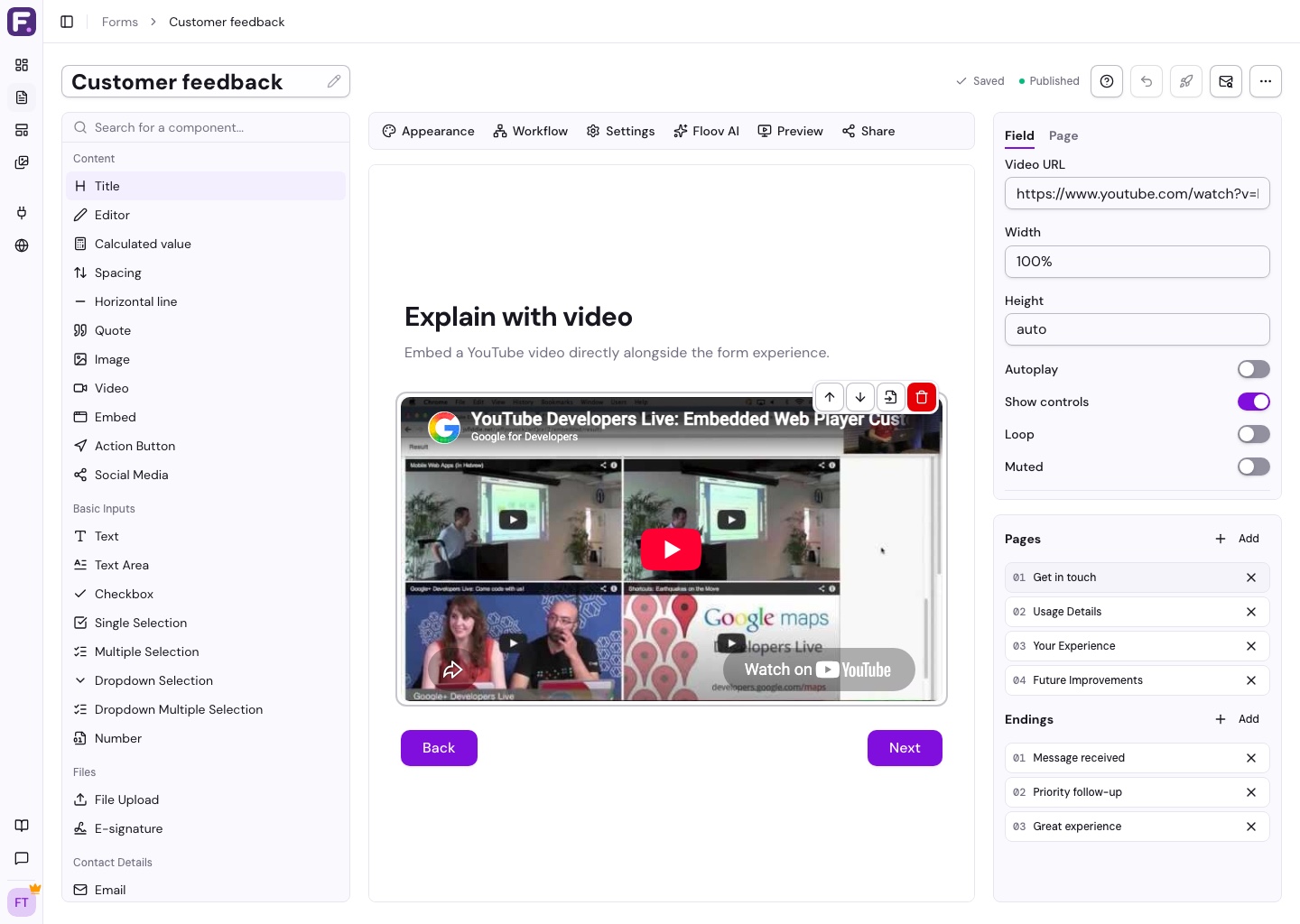
Select a block to change its content and display settings. Replace image placeholders with your own images before publishing.
An Image block sits among your questions. For a banner above or beside a page, use its Page > Image settings instead. See Themes & Appearance.
Use Layout & Structure for columns, spacing, and dividers.
Display Calculated Results
Add a Calculated value block or type @ to insert a numeric result in a Title or Editor. Choose number or currency formatting and an empty placeholder. Calculations and answer scores are free on every plan.