
How to embed a Floov form in WordPress

To add a Floov form to a WordPress page, publish the form, copy its inline embed code, and paste it into a Custom HTML block. Visitors can then complete the form on your website, and you can read their responses in Floov.
This guide uses the WordPress block editor and a contact form for an agency. The same approach suits a consultant’s inquiry page or a client intake form. Start by checking that your WordPress site allows iframes.
We checked these steps on self-hosted WordPress 7.1.3 using an administrator account and the block editor. The WordPress.com requirements below come from its documentation.
Check which WordPress setup you have
On a self-hosted WordPress site, your account needs permission to save iframe code. Administrators and editors normally have this permission on a standard single-site installation. On WordPress Multisite, it belongs to the network’s super administrators. A host or security configuration can impose further restrictions. WordPress documents these differences in its roles and capabilities guide.
On WordPress.com, an iframe requires a paid plan with hosting features activated. The free plan removes restricted code, including iframe tags. WordPress.com’s Custom HTML guide explains the requirement.
If you have a paid WordPress.com plan but hosting features are inactive, follow its plan activation instructions. Activation is a separate WordPress.com step; copying a Floov snippet does not activate the plan.
If your site cannot accept iframes, add a normal button or link to the form’s published URL. That opens the form on its own page.
1. Prepare the form you want visitors to complete
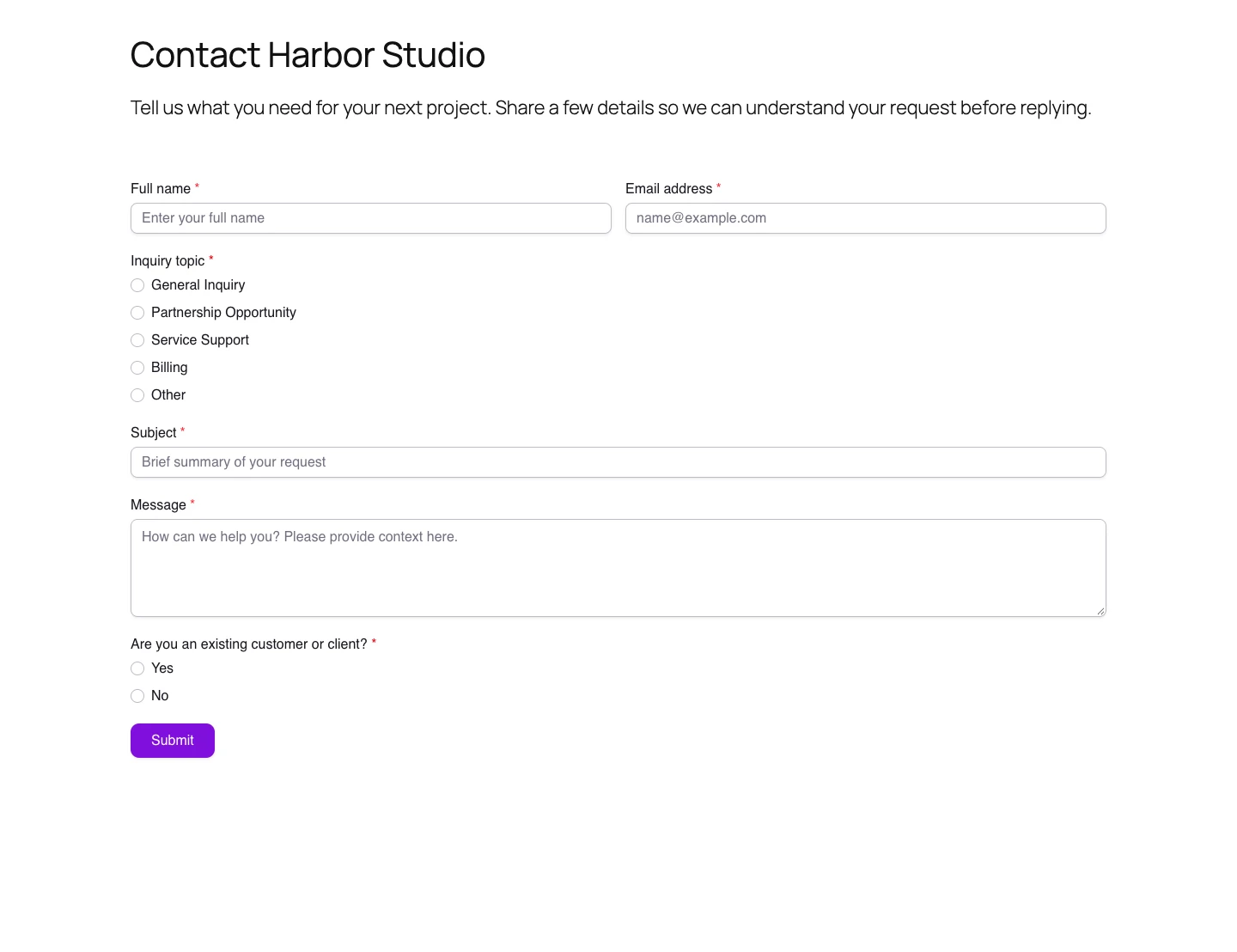
Open Floov’s free contact form template and copy it into your workspace. It includes a name, email address, inquiry topic, subject, message and an existing-customer question.
In this fictional example, the agency Harbor Studio places the form on a Contact page beneath this introduction:
Tell us what you need for your next project. Share a few details so we can understand your request before replying.
Keep the questions that help you answer that first inquiry. Adjust the topics to match the services you offer, and remove questions you do not need. For a longer discovery process, the client intake template collects more project context.
Check the form’s colors and text size against the page where it will appear. The embedded form uses its Floov design, so make those changes in Floov. WordPress controls the surrounding heading, introduction and page layout.
Match the form’s background and width to your WordPress page. If the page already has a heading and introduction, remove those repeated blocks from the copied form.
Choose Preview in Floov and work through the form. Read the confirmation message, then choose Publish. The contact template and inline embedding work on the Free plan. File uploads require Pro.
2. Copy the inline embed code from Floov
In the form editor, open Share. Find Embed, then choose Inline.
Set Height (px) to a starting value that suits your form. Copy the Embed code. The snippet includes the published form URL and saved language. Give your form a descriptive name in Floov; the snippet uses it as the iframe’s accessible title.
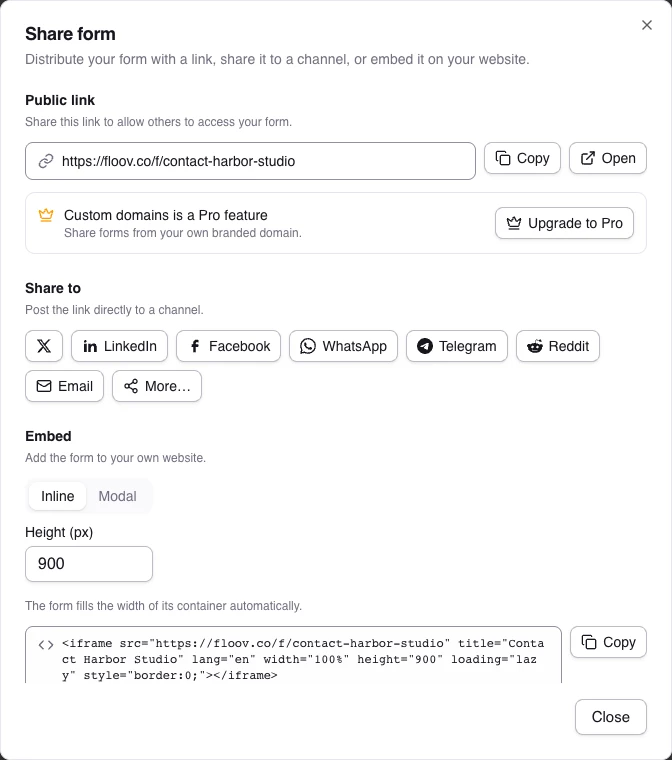
The code has this structure:
<iframe
  src="https://floov.co/f/your-form-slug"
  title="Contact Harbor Studio"
  lang="en"
  width="100%"
  height="900"
  loading="lazy"
  style="border:0;"
></iframe>
your-form-slug is a placeholder. Use the code copied from your own form so the URL is correct. The height of 900 is a starting point, not a requirement.
If you use a connected custom domain, select it in Share before copying. Floov will use that form URL in the snippet. Custom domains require Pro.
3. Add a Custom HTML block to your WordPress page
- Open the WordPress dashboard, go to Pages, and edit the page where the form should appear.
- Select the position below your introduction. Click the + block inserter, search for HTML, and choose Custom HTML. You can also type
/htmlin a new paragraph to find the block. - In WordPress 7.1.3, select the block and choose Edit code. In the editing window, open the HTML tab, paste the Floov snippet and choose Update to return to the page. Other editor versions may use Edit HTML or show the code area directly in the block.
- Save or publish the WordPress page as well. Closing the block’s code editor does not replace this step.
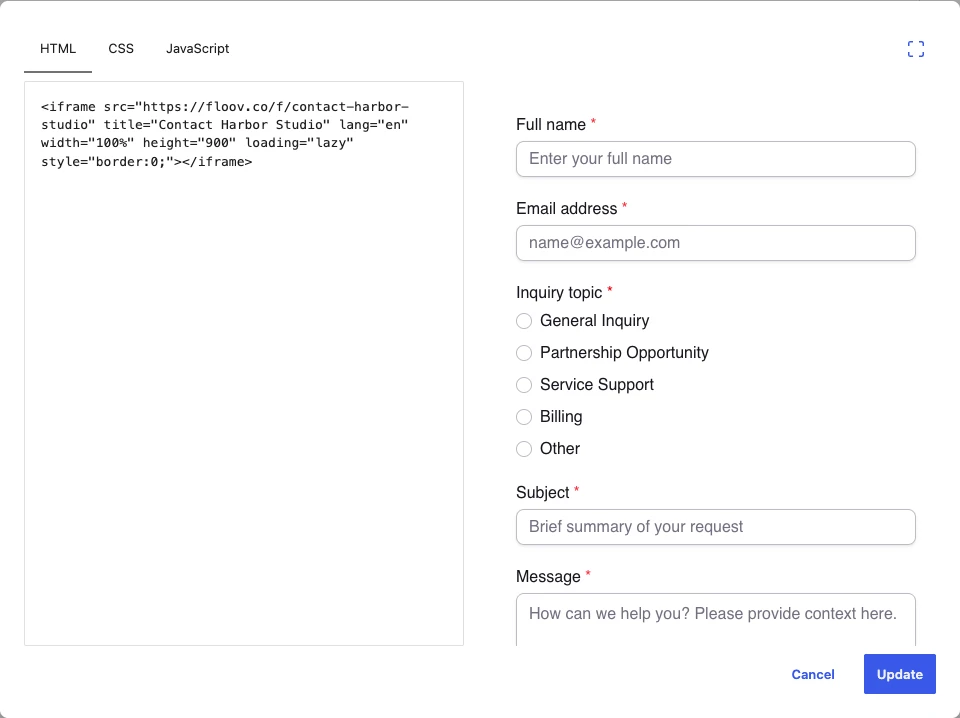
WordPress’s Custom HTML documentation shows the current block controls.
Use the Custom HTML block for the iframe markup. A Code block displays code for people to read. If you paste only the form URL, WordPress may treat it as a link or try another embed method.
4. Give the form enough room
The snippet’s width="100%" makes the iframe fill its WordPress container. If you place it in a narrow column, the form will have that column’s width. For a contact page, a single content column gives visitors more space to read and type. Select a wide or full-width page layout if your theme provides one.
The iframe has a fixed height. Use these values as initial estimates, then check your own form:
| Form layout | Height to try |
|---|---|
| Short form with 1–3 fields | 400–500 px |
| Form with 4–8 fields | 600–800 px |
| Longer or multi-page form | 800–1000 px or more |
To change the height, adjust it in Floov’s Share dialog and replace the snippet, or edit the height value in your WordPress HTML block.
Check the longest page and any validation messages. When the content is taller than the iframe, visitors scroll inside it. Increasing the height gives more of the form room to appear; it does not make the iframe resize automatically.
On a phone, look for questions wrapping awkwardly, a submit button below the visible area, or a form squeezed beside other content. Adjust the WordPress column layout and iframe height, then check again.
5. Check the saved page and send a test response
Open the WordPress page in a new tab while signed out of WordPress and Floov. The visitor-facing page is the place to confirm that the saved embed works.
Complete the form as a prospective client would. Try leaving a required answer blank to check its validation message. Then submit a clearly labeled test inquiry and confirm that the thank-you message appears.
Use Tab and Shift+Tab to move through the fields and return to the surrounding page. Check that you can see which field or button has keyboard focus.
In Floov, open the form’s Responses page and find the test. Check the name, email address, selected topic and message. A confirmation on the website and a saved response in Floov verify different parts of the journey; check both.
Repeat the submission on a phone, including any extra pages in the form. If you configured notifications or an integration, check that destination separately. Pasting an iframe does not turn on email notifications or spreadsheet delivery.
To send responses to a spreadsheet, follow the Google Sheets setup guide.
For help reading the saved result, see viewing responses.
Fix common WordPress embed problems
| What you see | What to check |
|---|---|
| The iframe disappears after saving | Reopen the HTML block. If the tag is missing, check your WordPress permissions or WordPress.com plan and hosting activation. Ask the site administrator to review the restriction. |
| The page shows the iframe code as text | Move the snippet into a Custom HTML block. A Code or Paragraph block is unsuitable for rendering it. |
| The form does not open | Copy its public URL from Floov and open it directly. Confirm that the form is published, that the URL is complete and that the snippet points to this URL. |
| Visitors see a password or closure message | Review the form’s published access settings. Those settings also apply when the form is embedded. |
| The form is cramped or needs too much scrolling | Check the WordPress container width and iframe height. Test the longest page on a phone. |
| A form change is missing | Publish the updated form in Floov and reopen the WordPress page. If you changed the snippet too, save the WordPress page again. |
If the iframe remains in the saved block but the form URL opens only in a separate tab, ask your site administrator to check whether the website blocks external frames. Share the form URL and the page with the problem so they can inspect the specific restriction.
Keep the form up to date after embedding
Edit questions and design in Floov, then publish the changes when they are ready. If the public form URL stays the same, you usually keep the existing iframe in WordPress.
Replace the snippet if you switch its form URL or custom domain. If you change the form’s language, publish it and copy fresh embed code so its language attribute matches. For height changes, update the snippet on the WordPress page.
The Floov embedding guide explains the available embed settings. The publishing guide covers how draft edits become visible to respondents.
Start with the free contact form template, publish your version, and copy its inline code into the WordPress page where clients will use it.
Frequently Asked Questions
Common questions about the topics covered in this article.
No WordPress form plugin is needed for this iframe method. Paste the Floov code into a Custom HTML block on a site that allows iframes. WordPress.com requires a paid plan with hosting features activated.
Change the form’s colors, fonts and layout in Floov, then publish. WordPress controls the container around the iframe. Styling the WordPress page does not change the fields inside the embedded form.
You can paste the same published form’s embed code onto multiple pages that accept it. Responses go to that form in Floov. If you need separate questions or separate response lists for different clients, create a separate form for each.
Visitors can complete a published form without a Floov account, subject to the access settings you choose. Test the saved WordPress page while signed out to check their experience.