
Forms for Airtable
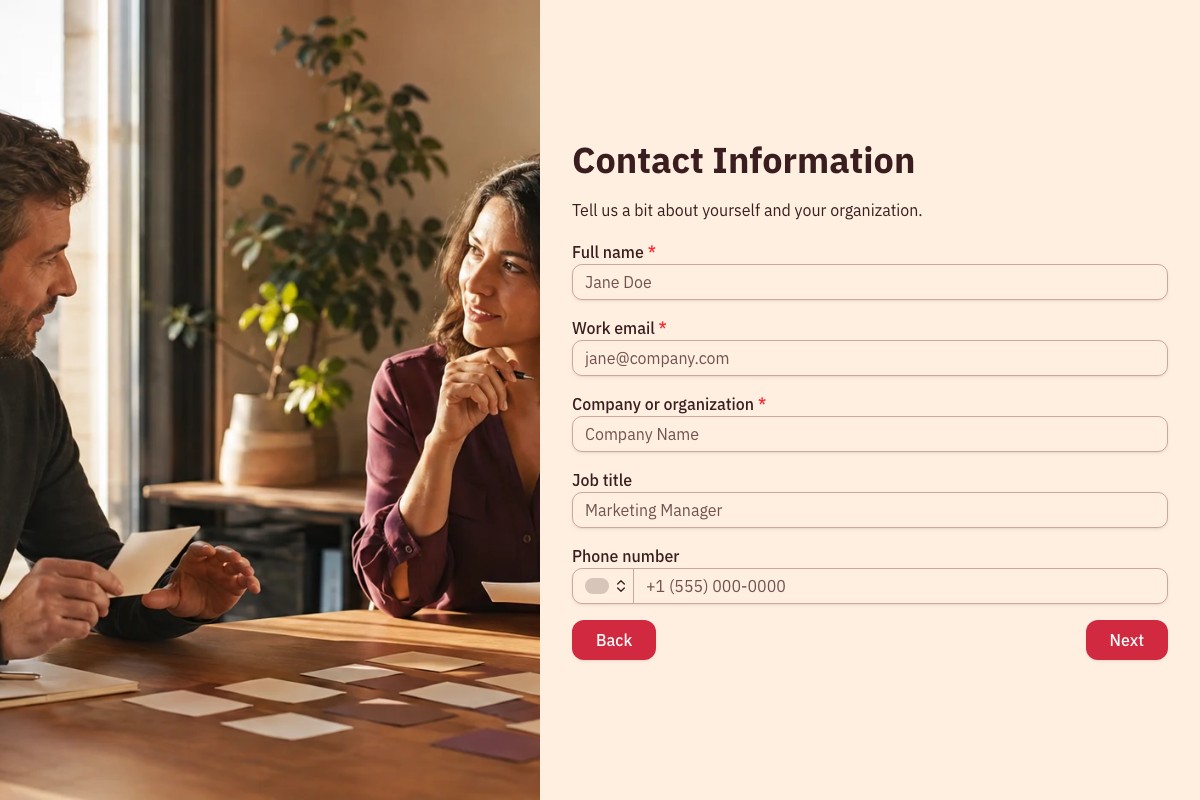
Collect new client inquiries in Floov and send each completed response to your Airtable table. Choose the answers and saved scores your team needs for review.
The Airtable integration is included on every Floov plan.
Preview Form
Lead Qualification Form
Review new inquiries in your Airtable table
Collect a prospective client’s goals, current challenges, timing and budget before the first conversation. Floov creates a record in the Airtable table you choose for each completed response.
An agency can group inquiries by service before assigning a follow-up. A consultant can review the written answers alongside the template’s saved score when deciding which conversations to prioritize.
Keep your team’s status, next action and person responsible in Airtable. Floov supplies the mapped answers and calculations; your team manages the follow-up.
Map a client inquiry to an Airtable record
The lead qualification template collects contact details, goals, timing and budget. Its saved review score can go into a number field alongside the answers.
Floov
Airtable
Fictional example
| Floov answer or calculation | Existing Airtable field | Example saved value |
|---|---|---|
| Full name | Contact | Morgan Lee |
| Work email | [email protected] | |
| Company or organization | Company | Example Studio |
| Primary area of interest | Service | Digital Marketing |
| What are you hoping to achieve? | Goal | Generate inquiries for a new consulting service. |
| When would you like to begin? | Timing | Within 1 month |
| Estimated budget range | Budget | $5,000 - $15,000 |
| Calculation: Review score | Review score (number) | 90 |
- Full name
- Airtable field: Contact Morgan Lee
- Work email
- Airtable field: Email [email protected]
- Company or organization
- Airtable field: Company Example Studio
- Primary area of interest
- Airtable field: Service Digital Marketing
- What are you hoping to achieve?
- Airtable field: Goal Generate inquiries for a new consulting service.
- When would you like to begin?
- Airtable field: Timing Within 1 month
- Estimated budget range
- Airtable field: Budget $5,000 - $15,000
- Calculation: Review score
- Airtable field: Review score (number) 90
Fictional inquiry in a Client pipeline base and New inquiries table. The destinations shown are example fields you create in Airtable before mapping.
Create matching text fields for this example and a number field for Review score. Floov maps to existing fields; it does not build the table.
The example score is 40 for the service, 30 for timing and 20 for budget. Adapt the template’s example weights to your own review process.
You can also map the submission ID and date. Empty answers are omitted, and mapped fields can be renamed or reordered.
Connect the base, table and fields you already use
-
Authorize Airtable
The Floov workspace owner connects an Airtable account and approves access to the required base.
-
Map existing fields
In the form editor, open Settings > Integrations > Airtable. Choose the connection, base and table, then map the answers to existing writable fields.
-
Publish and test
Enable Send responses to Airtable and publish the form. Submit a test response, then check both the saved Floov response and the new Airtable record.
Know what happens after a response is sent
Enable delivery for new completed responses. If you need responses collected earlier in Airtable, import them separately. Floov does not have an option to send those earlier responses.
Each delivery creates a new record, including repeat submissions from the same email address. Editing a saved Floov response does not update or resend its Airtable record. Make corrections in both places when needed.
Who can set it up
Only the Floov workspace owner can connect or disconnect Airtable accounts. Admins and editors can use an existing connection and configure the base, table and mapping. The connected Airtable account needs permission to add records to that table.
Change a published form’s mapping
For an already published form, Apply to live form updates integration settings without publishing unrelated draft edits. Publish new questions and calculations before mapping them to the live integration.
Choose a form for the next client conversation
Start with the information your team needs to review new work. Edit your copy, then select the answers and saved calculations to send to Airtable.
Collect goals, challenges, timing and budget, with an editable score to support your team’s review. This template is free.
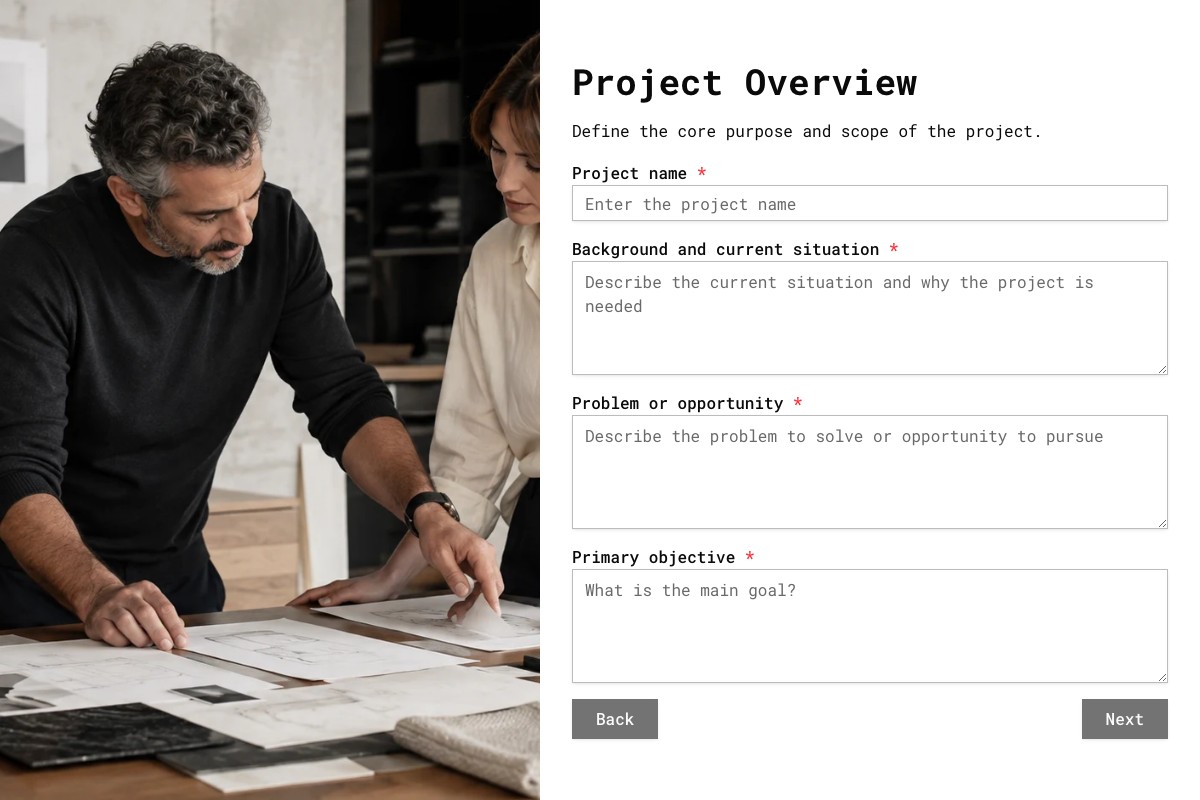
Clarify the objective, deliverables, scope and target dates with a prospective client. This template is free.
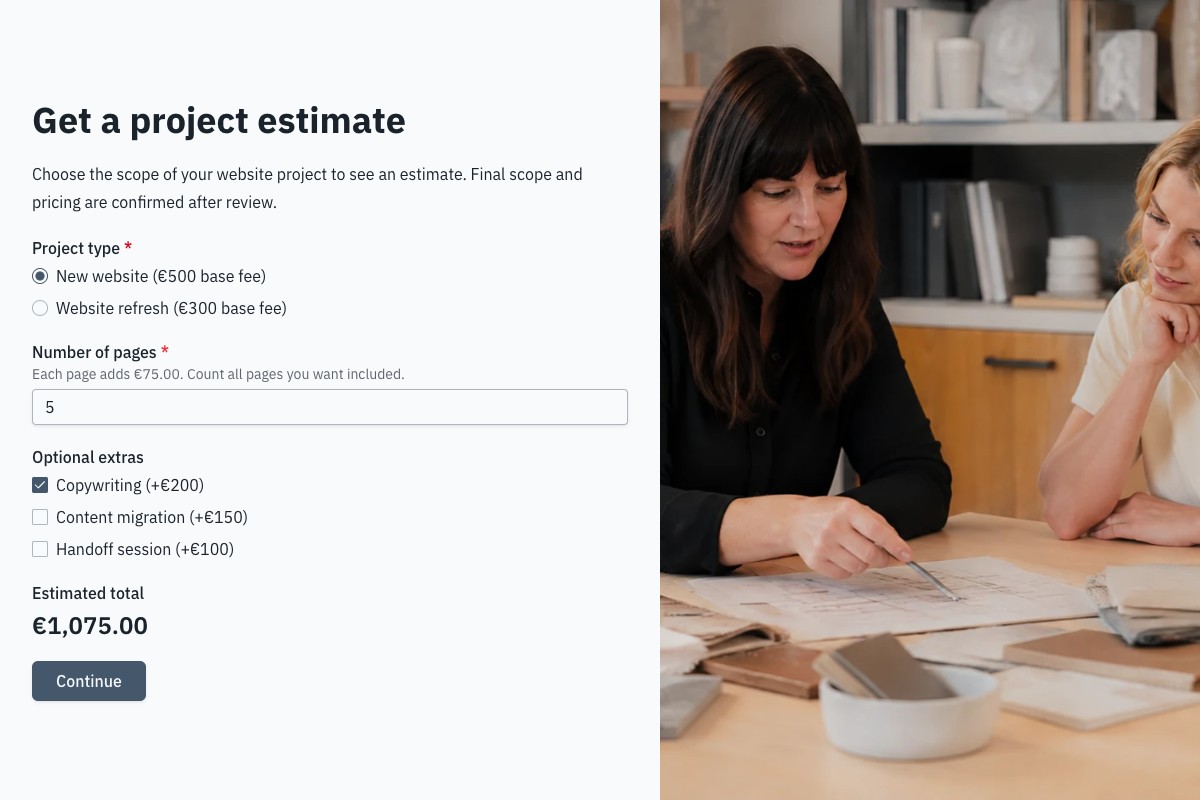
Collect project requirements and save an illustrative price estimate with the contact details. This free template provides an estimate, not a binding quote.
Frequently Asked Questions
Answers about Airtable fields, saved scores, plans and response delivery.
Yes. The integration and calculations are included on every Floov plan. Airtable’s own plan and API limits still apply. File uploads and conditional logic require Floov Pro.
Use compatible writable fields such as text, number, date or single select. Create them in Airtable first. Formulas, rollups and other computed fields are unavailable as destinations.
Yes. Map the numeric result saved with the submission to a compatible number field. This can be a review score or an estimated price. Publish new calculations before adding them to the live mapping.
Check the form’s Deliveries page for an error, then review the mapping, field types and Airtable access. Airtable limits can also block delivery. The completed response stays saved in Floov if delivery fails.
The integration sends completed responses from Floov to Airtable. It does not read Airtable edits back into the form or use records to prefill answers.
Disconnecting the workspace account stops future delivery through that connection. Records already created remain in Airtable. If you move a form to another workspace, configure its connection again and publish.
Loading template preview…
The Preview Is Taking Longer Than Expected
Open the full preview in a new tab, or continue to the template details and field list.