
Forms for Notion
Collect a project brief in Floov and send the answers to your Notion database. Each completed response creates a new page with the properties you choose.
The Notion integration is included on every Floov plan.
Preview Form
Project Brief Form
Keep the client brief beside your project work
An agency needs to know what the client expects before assigning design work. A consultant needs a clear objective and a boundary for the engagement. Collect those details in a Floov project brief and send them to the Notion database your team uses to review projects.
Map the project name to the page title, then add the objective and deliverables as separate properties. Your team can open the page in Notion to review the scope before planning the work.
Keep review status and responsibility in Notion. Floov supplies the selected answers; your team manages those internal project details.
See how a project brief becomes a Notion page
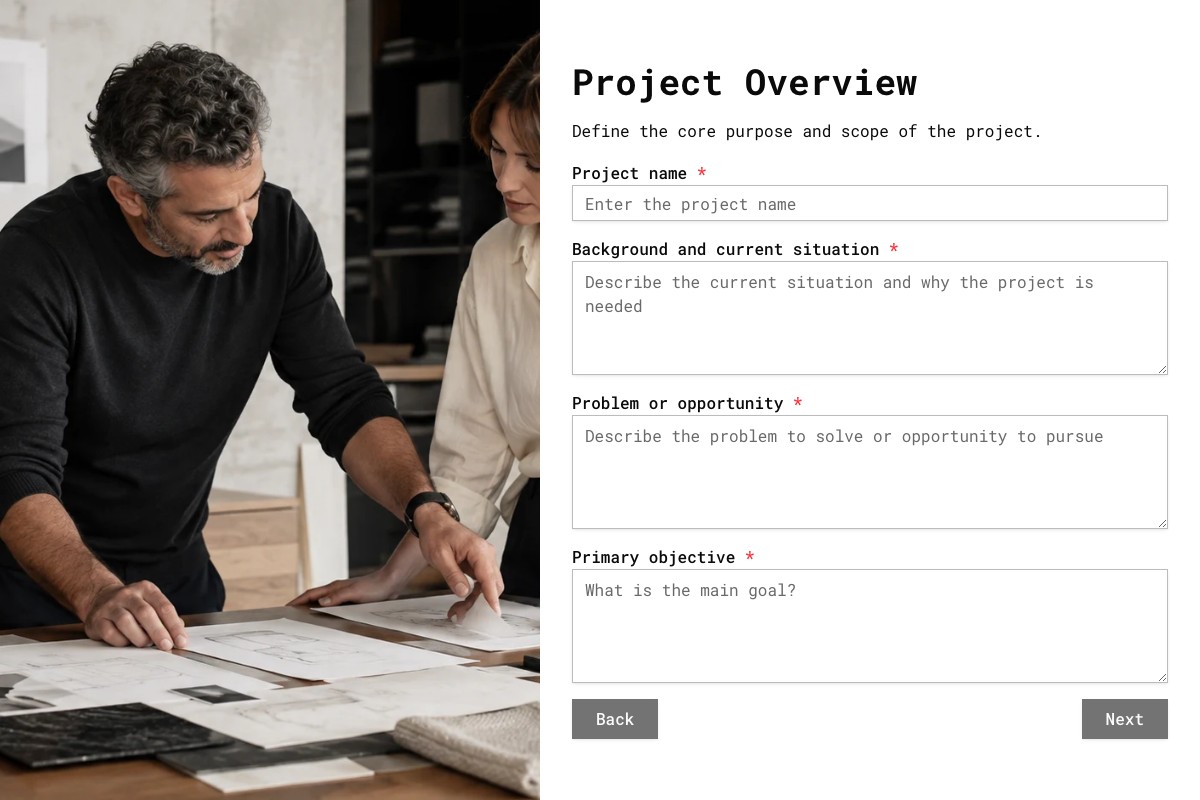
The Project Brief template asks about objectives, deliverables and what the work excludes. Map the answers you need to properties in your existing database.
Floov
Notion
Fictional example
| Question in the form | Example Notion property | Example value in Notion |
|---|---|---|
| Project name | Project (title) | Client portal refresh |
| Primary contact | Contact (text) | Morgan Lee |
| Contact email | Email (email) | [email protected] |
| Primary objective | Objective (text) | Let clients find project updates in one place. |
| Expected deliverables | Deliverables (text) | Portal pages, an onboarding form and handoff notes. |
| Out-of-scope items | Out of scope (text) | Billing system integration. |
| Preferred start date | Start date (date) | 16 November 2026 |
- Project name
- Property: Project (title) Client portal refresh
- Primary contact
- Property: Contact (text) Morgan Lee
- Contact email
- Property: Email (email) [email protected]
- Primary objective
- Property: Objective (text) Let clients find project updates in one place.
- Expected deliverables
- Property: Deliverables (text) Portal pages, an onboarding form and handoff notes.
- Out-of-scope items
- Property: Out of scope (text) Billing system integration.
- Preferred start date
- Property: Start date (date) 16 November 2026
Fictional client portal project. Each answer becomes a property on the same new page. Property names are examples; create them in Notion before mapping. Values are formatted for readability.
Choose a compatible property type for each answer. You can also map the submission ID and submission date.
If the page title is unmapped or its answer is empty, Floov gives the page a title using the form name and response number.
Mapped title and text values are limited to their first 2,000 characters. Keep longer source answers available in Floov.
Connect the form to a shared Notion database
-
Grant database access
The Floov workspace owner connects the Notion account and grants access to the destination database. Use a database with one data source; databases with multiple data sources are not supported.
-
Map the properties
In Settings > Integrations > Notion, select the connection and database. Map the form fields to compatible properties, then turn on Send responses to Notion.
-
Publish and test
Publish the form and submit a test response. Check the saved response in Floov and the new page in Notion, including its title and property values.
Create pages from new completed responses
After you enable delivery and publish the form, new completed responses create pages in the selected database. Earlier responses are not imported, and this integration has no historical sync action.
Each response creates a new page. Floov does not search for an existing client or project page to update. Editing a saved Floov response does not resend it, and changes made in Notion do not update the Floov response.
If a page is missing, check the form’s Deliveries page for an error. The original response stays saved in Floov when delivery fails.
Who can configure the integration
The Floov workspace owner connects and disconnects the Notion account. Admins and editors can use the connection to choose a shared database and map fields. If a database is missing, add the Floov connection to it in Notion and reload the database list.
Change the mapping on a published form
Apply to live form updates integration settings without publishing unrelated draft changes. Publish new questions or calculations before adding them to the live mapping.
Choose the form that fits your stage of work
Use a detailed brief when you need to agree on the scope, or a shorter intake form before the first conversation. The templates below are free.
Collect the objective, deliverables, exclusions and success measures for a project your team needs to scope.
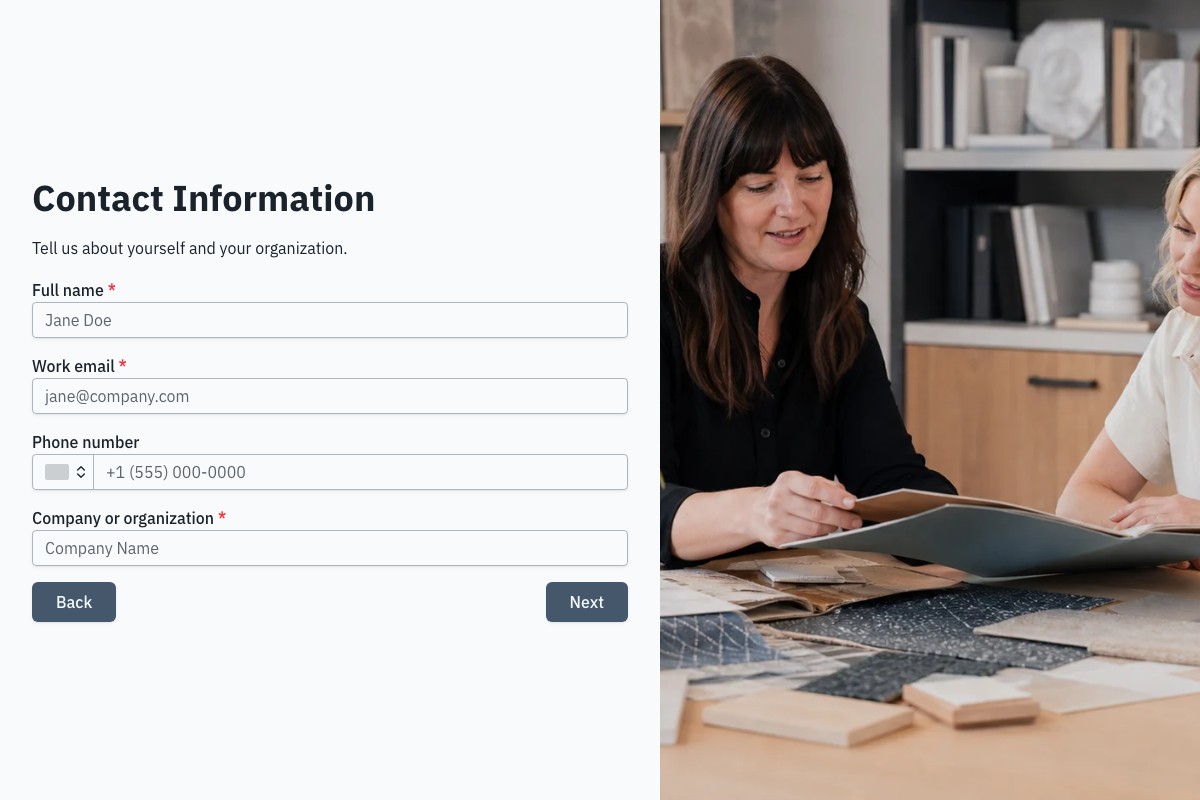
Gather contact details, the project summary and desired outcomes before reviewing a new client inquiry.
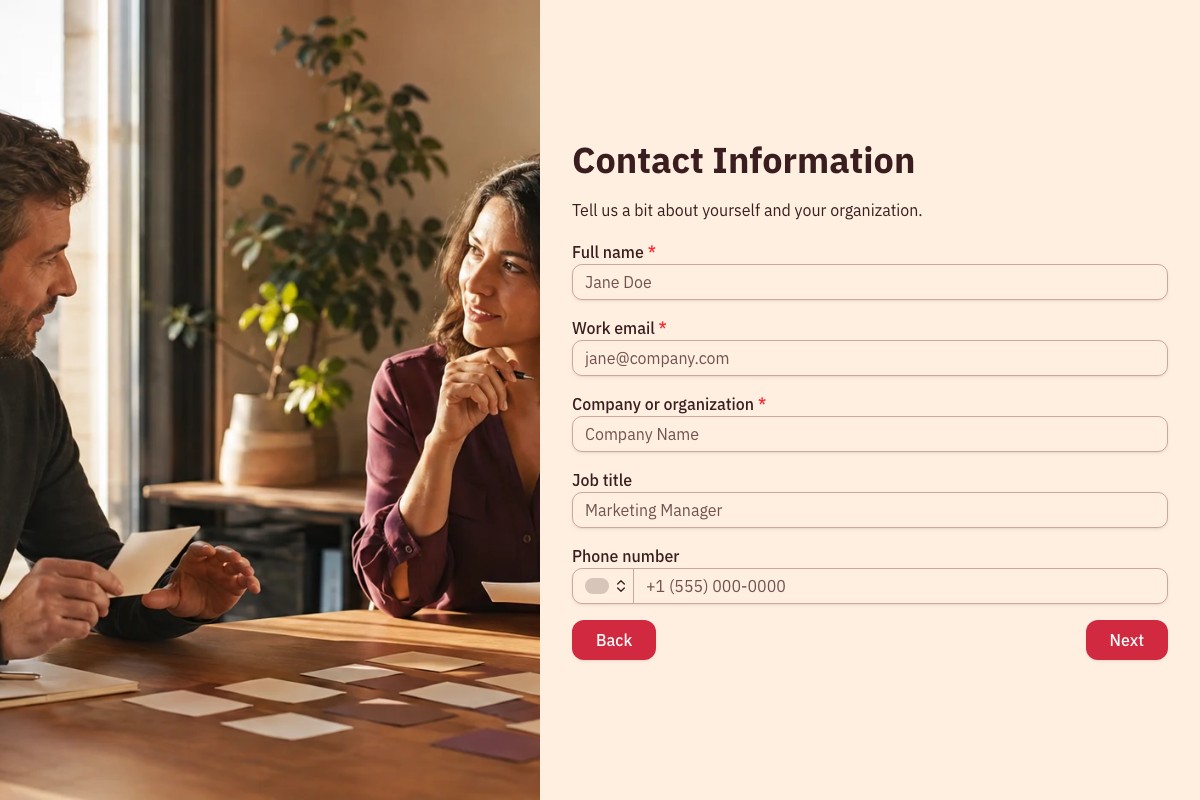
Ask about goals, current obstacles, timing and follow-up preferences before deciding the next step for an inquiry.
Frequently Asked Questions
Answers about Notion access, supported properties and how new pages are created.
Yes. Connecting Notion and mapping responses are included on every Floov plan. Your form needs Pro if it uses Pro features such as file uploads or conditional logic.
Clients complete your published Floov form. They do not need access to your Notion database; the configured connection sends their completed response to it.
Choose a database with one data source and grant the Floov connection access to it. Databases with multiple data sources are not supported by the current integration.
Floov supports title, text, number, date, email, phone and URL properties, plus select, status, multi-select and checkbox properties. Choose a type that fits the answer. People, files, relations, formulas and rollups are not available as mapping destinations.
Yes. Map a saved calculation or score to a Number property in Notion. Publish new calculations before adding them to the live integration. The value sent is the one saved with the completed response.
Editing an answer in Floov does not resend it or update its Notion page. If you need the same correction in both places, update both. Each new form response creates a separate page.
Loading template preview…
The Preview Is Taking Longer Than Expected
Open the full preview in a new tab, or continue to the template details and field list.