Collect Client Files Alongside Their Answers
Ask clients for a screenshot, brief or supporting document in the form they are already completing. Keep the file with the explanation your team needs to act.
The workspace owner needs an active Pro subscription to collect files.
Preview Form
Support Ticket Form with Attachment
Give a support request the context it needs
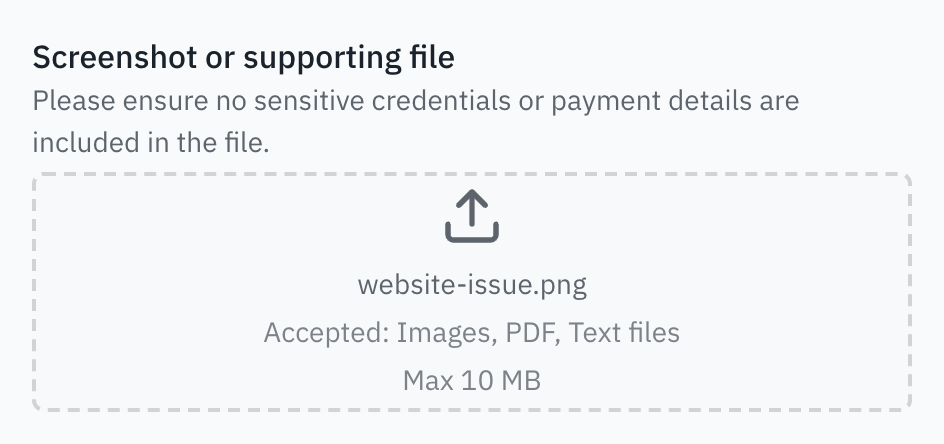
A client reports a problem with their website. The support form asks what happened and how to reproduce it, with an optional screenshot or supporting file on the Issue Details page.
Choose Start, enter sample contact details and choose Next. On Issue Details, select a file to see its name.
Try the support formThe preview does not upload files or submit responses. Reloading clears your file selection and answers.
Screenshot or supporting file
Attachment settings in the support ticket template
- Form page
- Issue Details
- Attachment
- Optional
- Accepted files
- JPG/JPEG, PNG, GIF, WebP, PDF or TXT
- Maximum per file
- 10 MB
Choose what clients can attach
Match the upload field to the document or image your team needs.
Request the right file types
Accept supported images, PDF, Word, Excel, TXT or CSV. Each upload field accepts one file; add separate fields when you need more.
Read the guideSet a size limit
Choose 2, 5, 10 or 25 MB per file. Make the attachment optional or required to continue.
Read the guideRead files with the response
Files are stored privately. Open a saved response in Responses to download its attachments, using an account with access to that form’s responses.
Read the guideWhat’s free, and when you need Pro
The workspace owner needs an active Pro subscription to collect attachments.
Included on Free
- Text and choice questions.
- Multiple pages, navigation and a progress bar.
- Published forms and collected responses.
Available with Pro
- File-upload fields in published forms.
- Accepted types, per-file limits and required attachments.
- Private files saved with completed responses.
Files are uploaded when the form is completed. Storage is subject to Fair Use.
Prepare the form for client files
-
Copy a starting form
Add a template to a workspace whose owner has active Pro. Adapt the questions to your client request.
-
Set the attachment requirements
Name the document or image you need. Set its accepted types, size limit and whether it is required.
-
Publish and check a response
Publish your copy and send a test response with a supported file. Open the response and check that the attachment downloads.
Start with a form that asks for files
These templates require Pro. Adapt the questions and attachment settings before publishing.
Collect issue details and an optional screenshot, PDF or text file, up to 10 MB.
Collect candidate details and a required PDF or Word résumé, up to 10 MB.
Collect website goals and an optional brand guide or project document, up to 10 MB.
Frequently Asked Questions
Answers about file selection, limits, private access and Pro.
Yes. The workspace owner needs active Pro to collect files. You can explore the public template previews before choosing a plan.
Choose supported images (JPG/JPEG, PNG, GIF and WebP), PDF, Word, Excel, TXT or CSV. Set a per-file maximum of 2, 5, 10 or 25 MB. The support example accepts images, PDF and TXT up to 10 MB.
Each upload field accepts one file. Add separate upload fields when your form needs several attachments.
Downloading from Responses requires signing in with access to that form’s responses. Anyone with a temporary file link shared through notifications or integrations can open it until it expires.
No. The preview keeps the selected file locally in memory and checks its size. It does not upload the file or save a response. Reloading clears the selection and answers.
No. Selected files are not restored after a reload. Respondents returning to saved progress must choose their files again before completing the form.

The Preview Is Taking Longer Than Expected
Open the full preview in a new tab, or continue to the template details and field list.